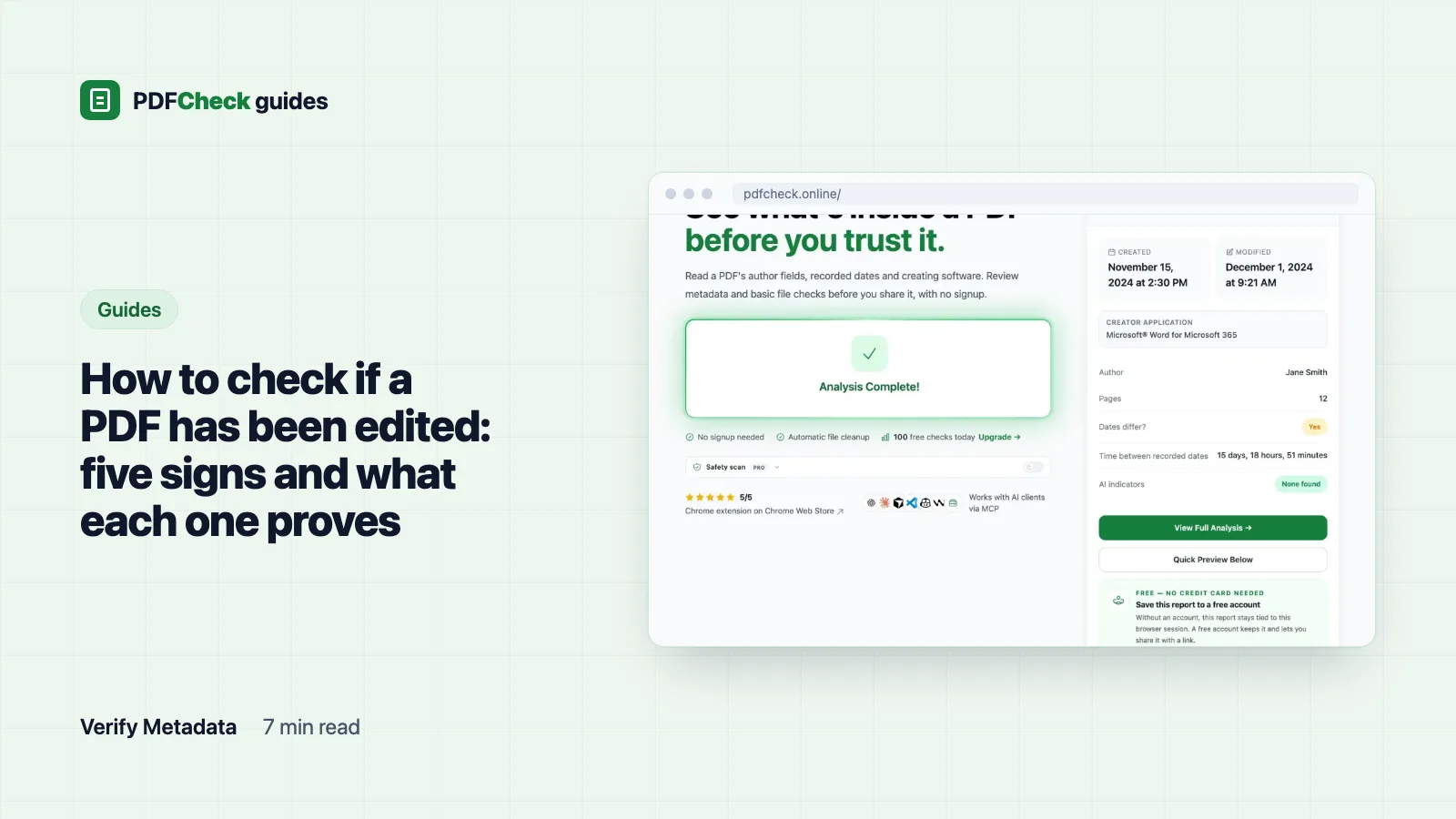
A PDF keeps no reliable log of its edits. What it does keep is a handful of traces: two dates, the names of the programs that wrote it, and, if it was signed, a record of exactly which bytes the signature covers. Reading those traces tells you what to ask. Only the sender or the issuer can confirm the answer.
Below are the five checks I run, in order, with real numbers from test files so you can see what each sign looks like and where it stops being useful.
1. Do not touch the original
Opening the file in an editor and pressing Save rewrites the very fields you want to inspect. Work on a copy, and note where the original came from and when.
When you upload the copy to the PDF metadata checker, the report includes a SHA-256 checksum, a fingerprint of the file's exact bytes. Write it down. If the checksum of a file you receive later is different, the bytes are different, even if the pages look the same. A matching checksum, on the other hand, is as close to "identical copy" as you can get without a signature.
2. Compare the created and modified dates
The report reads both dates, preferring the XMP values when the file has them and falling back to the Info dictionary otherwise. Then it applies a few rules:
- Created and modified less than 60 seconds apart count as unmodified, because many programs stamp both at save time.
- A gap under five minutes adds a note that the edit was probably minor or an auto-save.
- A modified date earlier than the created date is flagged as a possible clock or metadata problem, and the date reliability drops from high to medium.
- No modified date at all gets the note that the file may not have been edited after creation. Many generators never write one.
For a test file labelled as a Word export with a creation date of 15 March 2026 and a modification date two days later, the report showed Modification Status: Modified 1 day, 18 hours, 45 minutes and a Document health of 95 with one warning. That warning is information, not an alarm. A later modified date means something saved the file again, which is normal after signing, filling a form, compressing or adding OCR text. It never says what changed. For reading the date strings themselves, see how to check when a PDF was created.
3. Check which software last wrote the file
Two fields matter. Creator is the application the document was written in. Producer is the component that wrote the PDF bytes, which is often a separate library or print driver. Adobe's pdfmark reference defines both keys.
Here is the sign in action. I took that same Word-labelled test file and passed it through Ghostscript without editing a single word. The title, author and Creator survived. The Producer became GPL Ghostscript 10.08.0, and both dates were reset to the moment of conversion. So a Creator that names one application and a Producer that names another is the classic footprint of a conversion, print-to-PDF or online-tool step, and a recent creation date tells you when that copy was written, not when the content was drafted.
Compare the fields with the story you were told. A statement that supposedly came straight from a bank's system but lists a desktop PDF editor as Producer needs an explanation. Ask before you accuse: scanners, e-signature services, portals and print drivers all rewrite files for ordinary reasons.
4. Read the signed byte range
If the file carries a digital signature, this is the one check that can point at a specific change. A PDF signature cannot cover itself, so the signing software records in /ByteRange exactly which bytes it signed: everything before the signature gap and everything after it. The PDF signature checker adds up those numbers and compares the result with the file size.
In my test, a file signed with TCPDF was 19,613 bytes with ByteRange [0 1840 13584 6029]. 13,584 + 6,029 = 19,613, the file size, so the result was "Signed range reaches file end". I then appended an update that changed the title to "Edited after signing". The file grew to 19,804 bytes, the signed data still ended at 19,613, and the checker reported "Bytes follow signed range" with 191 unsigned bytes and the summary warning that the document may have been modified after signing. Poppler's pdfsig said the same thing in its own words: Signature is Valid, Not total document signed.
That last line is the point. PDF editors save changes by appending an incremental update rather than rewriting the file, so the original signed bytes stay intact and the signature stays mathematically valid while the later bytes change what a viewer displays. Extra bytes are therefore more telling than the signature status. They are not automatically fraud, though: a second signer's signature is itself an appended update, and so is a filled form field or a comment. Look at the last signature in the file; in a document whose final step was signing, it should reach the end.
The checker does not recompute the hash, verify the cryptographic signature, judge whether the certificate is trusted or check revocation. For those, and to view the exact version that existed when each signature was applied, open the file in Acrobat's signature panel or run pdfsig. If you expected a signature and the checker finds none, ask for the signed original: printing to PDF or re-saving through a converter discards signatures entirely.
5. Get a second copy from the source
This is the strongest check and the only one that can settle the question. Download the document again from the official portal, or ask the issuer to confirm the key values, using contact details you already had rather than any printed in the questioned file.
With two versions in hand, the PDF comparer lines up fifteen properties: pages, size, version, title, author, subject, Creator, Producer, both dates, encryption, tagging, font and image counts and JavaScript. Matching is literal, so a timestamp one second apart counts as different. When I compared the original test file with its Ghostscript copy, it reported four differences: size, Producer and both dates. It does not read the wording on the pages, so two contracts with different payment terms and identical properties come back as "no differences". For the words, pull the text of both files with the text extractor and run them through any text diff tool.
What you found, and what to do
| What you found | What it usually means | Next step |
|---|---|---|
| Dates and software fit the story | No obvious inconsistency | Note it. Clean metadata can be typed in by anyone, so it is not proof. |
| Producer differs from the Creator's application | A conversion, print or online-tool step | Ask how the file was produced and delivered. |
| Modified date much later than created | Re-saved, signed, filled, compressed or OCRed | Ask what happened in between; the dates will not tell you. |
| Bytes follow the signed range | An incremental update after signing | Check whether it is a second signature or form fill; view the signed version in Acrobat and ask the signer. |
| Checksum differs from an earlier copy | The bytes changed | Compare the two versions and the extracted text. |
| Several signs clash and money or rights depend on it | Too much uncertainty | Stop relying on the file. Confirm with the issuer; get specialist help. |
What none of this can tell you
- What changed. Dates, names and byte counts do not show which words or figures were altered. Only an earlier version, or the signed version in a validator, can.
- Who changed it. The Author field usually holds whoever set up the software, copied forward with every template.
- That it is genuine. Every field is plain text any editor can change, and a careful forger makes a file look clean.
- Anything after a full rewrite. Printing to PDF or saving through a converter rebuilds the file and erases the earlier traces. The PDF Association's note on the challenges of PDF forensics explains why incremental updates and rewrites make a file's history so hard to reconstruct.
Treat a mismatch as a reason to look closer and a clean report as the absence of obvious inconsistencies. Then pick up the phone to the issuer, which is still the only check that proves anything.