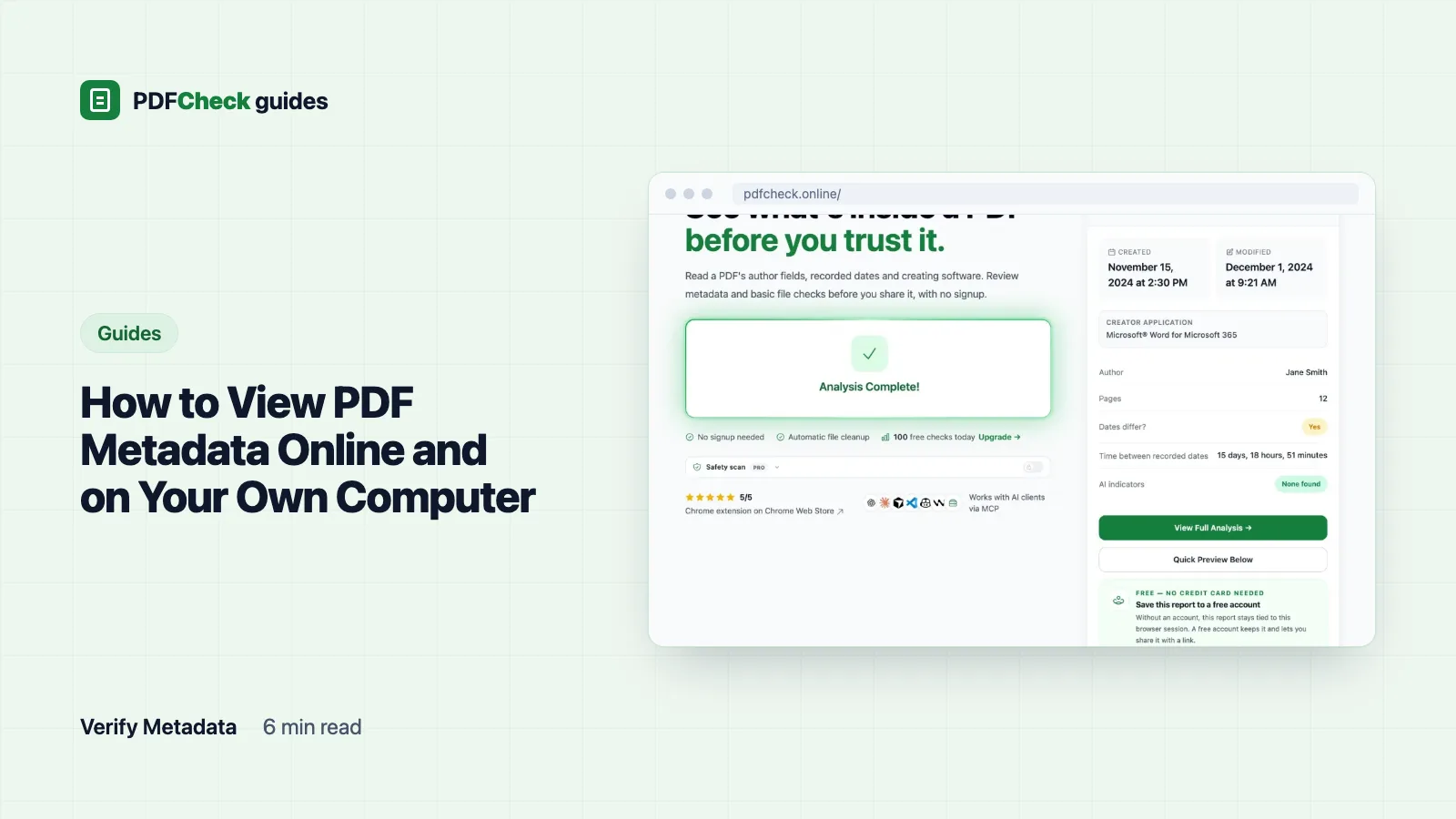
To see a PDF's metadata, open its document properties. Online, upload the file to the PDFCheck metadata checker. On your own computer, use File > Properties in Adobe Acrobat Reader, Document properties in Chrome or Firefox, the Inspector in macOS Preview, or pdfinfo in a terminal. They all show the same core fields. They differ in whether they show both metadata blocks, how they format dates, and whether they show you the raw values at all.
A PDF describes itself twice
Metadata is stored inside the file but not printed on the pages, and a PDF has two places to keep it.
- The Info dictionary is the original set of short keys: Title, Author, Subject, Keywords, Creator, Producer, CreationDate and ModDate. Adobe's pdfmark reference lists all eight and marks every one of them optional, which is why so many files have blanks.
- XMP is a block of XML embedded in the file, with properties such as
dc:title,xmp:CreateDateandpdf:Producer. It can repeat the Info fields and add others, such as a document ID.
Applications are supposed to keep the two in step. Editors that touch only one of them leave the file disagreeing with itself, which is the usual reason two viewers show two different titles.
Reading it online
- Open the metadata checker on the home page and choose your PDF. The Free plan takes files up to 50 MB and 100 checks a day.
- The Overview gives you title, author, page count and PDF version.
- The Dates section shows created and modified times, and the raw date strings exactly as stored.
- The Application section shows Creator and Producer and what the checker recognised them as.
- Raw Data Output lists every value it found, so you can see both blocks side by side.
The checker reads the Info dictionary through pdfinfo and searches the first 2 MB of the file for an XMP packet. When both hold a value, XMP wins and Info is the fallback, field by field, so a title can come from Info while the dates come from XMP. The report tells you which source each value came from.
Here is a real run from our test set. I built a one-page file whose Info dictionary held a title, an author, Creator and Producer both set to Microsoft® Word for Microsoft 365, created D:20260315143022+01'00' and modified D:20260317091544+01'00'. pdfinfo gave back Title: Quarterly report, Author: J. Doe, both dates converted to UTC and PDF version: 1.7. The report turned that into Modified 1 day, 18 hours, 45 minutes, identified the software as Microsoft Word, and scored Document health 95 with one warning for the modification. The trademark sign was stripped before matching, which is why Microsoft® Word still matched.
Your PDF is not kept, only the report. Reports made without an account are deleted after 90 days.
Reading it without uploading anything
For a confidential file, use software on your own machine. Nothing leaves it.
| Tool | Where to click | What you see |
|---|---|---|
| Adobe Acrobat Reader | File > Properties, or Ctrl+D (Windows) and Cmd+D (Mac), then the Description tab | Title, Author, Subject, Keywords, Created, Modified, Application, PDF Producer, PDF Version |
| Chrome's PDF viewer | Three-dot menu at the top right > Document properties | Title, Author, Subject, Keywords, dates, Application, PDF producer, PDF version, page count |
| Firefox's PDF viewer | Toolbar menu at the top right > Document Properties | Similar fields to Chrome, plus page size |
| macOS Preview | Tools > Show Inspector (Cmd+I) | Title, author, creating and encoding software, dates and page count |
| pdfinfo (command line) | pdfinfo report.pdf; add -meta to print the XMP block instead | Every Info field, plus page count, page size, encryption and PDF version |
pdfinfo comes with Poppler, a free PDF rendering library whose command-line tools are packaged for Linux, macOS and Windows. Its manual page lists everything it prints, including whether the file is encrypted and whether it contains JavaScript. It is also what our checker uses under the hood, so its output and ours should agree.
What each field means
| Field | What it records | Example |
|---|---|---|
| Title | A name set by the author or the software. Some viewers show it in the tab instead of the file name. | Quarterly report |
| Author | A person or organisation, usually copied from the account that set up the software. | J. Doe |
| Subject, Keywords | An optional description and search terms. | supplier review, invoices |
| Creator | The application the document was written in, before it became a PDF. | Microsoft Word |
| Producer | The component that wrote the PDF bytes. Often a different library or print driver. | GPL Ghostscript 10.08.0 |
| CreationDate | When the software says it wrote this PDF file. | D:20260315143022+01'00' |
| ModDate | When the software says it last saved the file. | D:20260317091544+01'00' |
| PDF version | The version of the format the file declares in its header. | 1.7 |
Decoding a raw date
Info dictionary dates follow the pattern D:YYYYMMDDHHmmSSOHH'mm', where O is +, - or Z and the apostrophes separate the offset's hours from its minutes. Take D:20260315143022+01'00': 2026, March, the 15th, 14:30:22 local time, one hour ahead of UTC. The same moment in UTC is 13:30:22, and our test run displayed it as March 15, 2026 at 1:30 PM with the source marked info_dict. Everything after the year is optional, so D:2026031514 is a legal date that stops at the hour. XMP dates use ISO 8601 instead, such as 2026-02-14T16:45:10+02:00.
Why two viewers disagree
- They read different blocks. One shows the XMP title, the other the Info title.
- They convert time zones differently. Some show your local time, some show UTC, some show the string as stored.
- They hide empty fields. A missing Author may appear blank, as "Unknown", or not at all.
When two tools disagree, go to the raw values, either from pdfinfo or from the checker's Raw Data Output, and compare those.
What none of these fields can prove
Every value above is text that any PDF editor can change, and many conversion steps overwrite it without asking. When I passed the Word-labelled test file through Ghostscript, the title, author and Creator survived, but the Producer became GPL Ghostscript 10.08.0 and both dates were reset to the moment of conversion. A recent creation date tells you when that copy was written, not when the content was first drafted.
The Author field does not identify a person either. It usually holds the account name of whoever set up the software, and it is copied forward every time a template is reused, which is why your own PDFs may carry your computer username. Treat a mismatch between fields as a reason to look closer and a clean report as the absence of obvious inconsistencies, never as proof of authenticity. If the dates are what you are really after, how to check when a PDF was created goes through what they can and cannot tell you, and how to edit PDF metadata explains how to correct them on a copy.
One reassurance: reading properties never changes the file. Saving it afterwards from an editor can, by updating the modified date and the Producer.