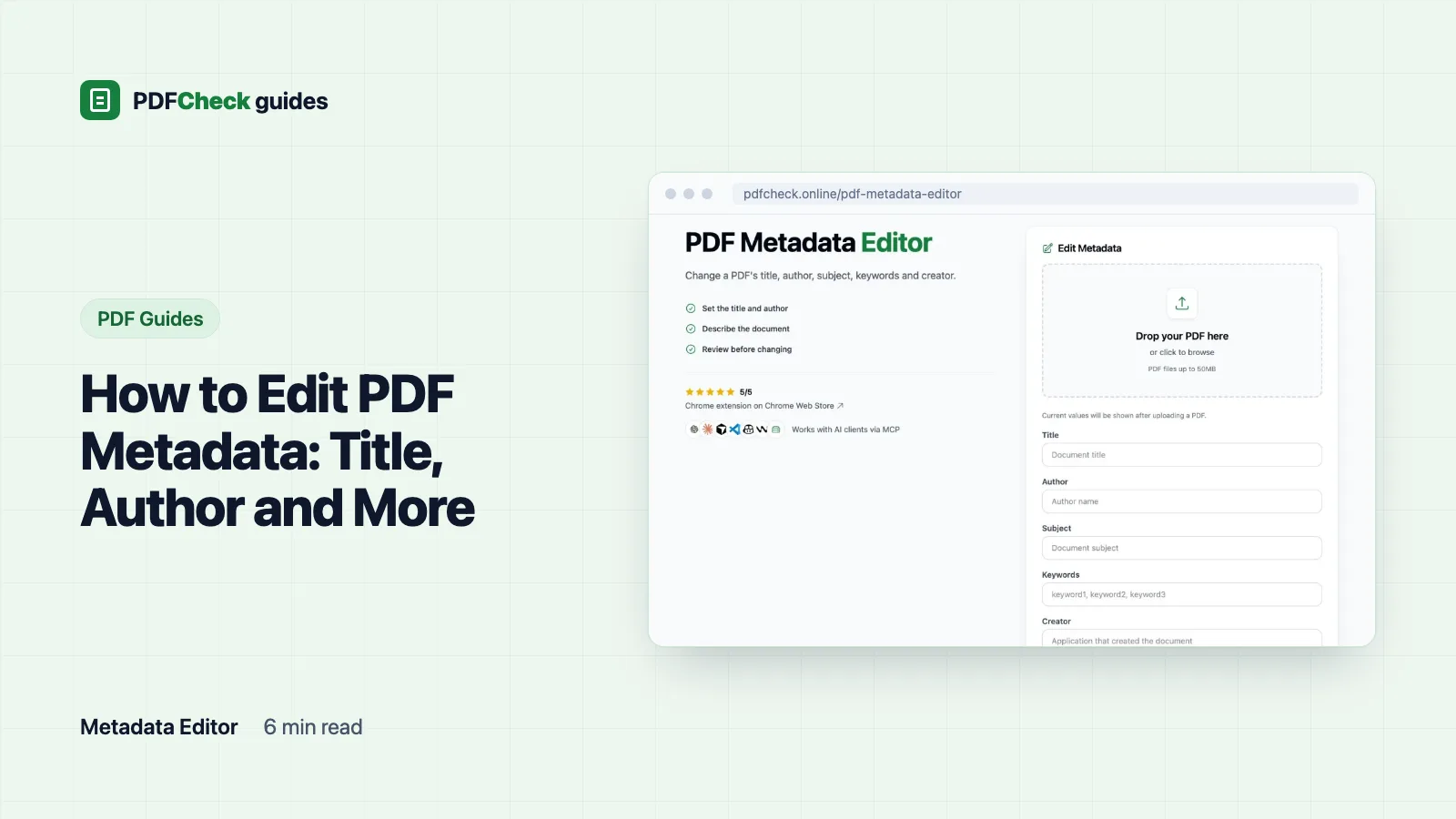
Open a copy of the file in a metadata editor, change the Title, Author, Subject, Keywords or Creator, and save. That is the whole task. The part people miss is what else changes when a tool rewrites the file, so this guide shows a measured before-and-after from the PDFCheck metadata editor and tells you when to go back to the source document instead.
Where a PDF keeps its properties
A PDF can describe itself twice. The document information dictionary, the Info dictionary, holds short text entries such as /Title, /Author and /Producer. Adobe's pdfmark reference lists the eight standard keys. The XMP packet is an XML stream attached to the document catalog that repeats most of those values under names like dc:title and can carry custom schemas and document IDs as well.
Viewers do not agree on which copy to show. A file whose two copies disagree can display one title in Preview and another in Acrobat. Our editor sidesteps that by writing both copies fresh from what you type, so in the output they always match.
The five fields and their limits
| Field | XMP property written | Maximum length |
|---|---|---|
| Title | dc:title | 500 characters |
| Author | dc:creator | 500 characters |
| Subject | dc:description | 1,000 characters |
| Keywords | pdf:Keywords and dc:subject | 1,000 characters |
| Creator | xmp:CreatorTool | 500 characters |
Producer and the two dates are not on the form. The editor builds a new file with the TCPDF library, so Producer always reads TCPDF 6.11.4 and both CreationDate and ModDate become the moment of the save. If the original dates matter to you, for example because someone will later ask when the PDF was created, this is the wrong tool.
What one save did to a sample file
I built a two-page test PDF with all six text properties, a custom XMP entry, two bookmarks, a comment, a file attachment and one filled form field, then edited it the way the form sends it: Title and Author changed, Subject cleared, Keywords and Creator left as pre-filled. Everything in the right column was read back from the download with pdfinfo and qpdf.
| Property | Original | After the editor |
|---|---|---|
| Title | Q3 supplier audit | Q3 supplier audit (final) |
| Author | Sample Author | Audit Team |
| Subject | Quarterly review | Not present |
| Keywords and Creator | audit, suppliers, Q3 / ExampleWriter 4.2 | Unchanged |
| Producer | ExampleWriter PDF Engine 4.2 | TCPDF 6.11.4 |
| Creation and modification dates | Original values | Both set to the time of the save |
| Custom XMP entry | Present | Removed |
| Bookmarks | 2 | 0 |
| Comment and attachment | 1 each | None |
| Form field with value "Acme Parts" | 1 | 0, and the value no longer shows |
| Page sizes | A4 portrait, A4 landscape | A4 portrait, A4 landscape |
The vanished form value is the surprise worth understanding. A filled field is drawn by a widget annotation sitting on top of the page, not by the page content itself. The editor imports page content only, so the field and the text it displayed both disappear. If you must edit properties on a form, do it before filling, then fill and flatten afterwards.
What stayed: the look of every page, mixed sizes and orientations, all text drawn on the pages including text hidden under a white box, and the embedded image data. A JPEG in the sample still carried its EXIF author tag after the save. Changing properties is not redaction.
Editing a copy in PDFCheck
- Make a copy and work on that.
- Open the metadata editor and choose the file. The current values are read into the Title, Author, Subject, Keywords and Creator boxes. Reading them does not use a check.
- Type the new values. Note the hint under the form: A field you leave empty is saved empty; it does not keep the original value. An empty field is not sent at all, and TCPDF writes no entry for it.
- Click Save Metadata. The file is uploaded again and rebuilt. Each successful save uses one check, 100 a day on the Free plan, with uploads up to 50 MB on Free and 100 MB on Pro and AI.
- Click Download PDF. The link works only in the browser session that made it, and the file is removed by the hourly cleanup once it is more than 24 hours old. The uploaded copy is deleted as soon as the save finishes. A troubleshooting log keeps the file name, its size and the property values before and after the edit.
- Drop the download on the PDF metadata checker to confirm the new values, and page through it once.
Messages you may see when you pick the file
- "This PDF is password-protected." or "This PDF has permission restrictions set by its owner." appears as soon as you choose the file, and nothing is pre-filled. An encrypted file's values cannot be read without the password, and a rebuilt copy would silently drop the protection, so the editor refuses it. Remove the protection with the password tool, using the file's own password, then edit.
- "Daily limit reached." You have used 100 saves today on the Free plan.
- A size error means the file is over your plan's upload limit.
- Files written with compressed object streams, which is how Ghostscript 10 and pdf-lib save by default, used to fail with an FPDI parser message. The editor now rewrites such a file with a classic cross-reference table first, using qpdf or Ghostscript, and then edits it. You should not see that error any more; if you do, tell us.
When to edit the source instead
| Your file | Better route |
|---|---|
| Digitally signed | Do not touch it. Any rewrite invalidates the signature. Fix the source and sign again. |
| Has bookmarks, links, comments, form fields or accessibility tags you need | Change the properties in the program that made it and export again. In Word that is File > Info, or Properties > Advanced Properties for the Summary tab, as Microsoft describes. Acrobat Pro's Document Properties dialog edits the fields in place without rebuilding. |
| You want the properties gone, not changed | Use the metadata remover. Ghostscript then records its own name as Producer. |
| The wrong text is printed on the page | That is content, not metadata. No property editor can fix it. |
What a new title does and does not do
Setting a real Title is a genuine accessibility step: W3C's technique PDF18 relies on the Info dictionary title so that a viewer or screen reader can announce the document instead of its file name. It does not make the file accessible on its own, and because this editor drops the tag tree, it can undo a tagged export. Run the result through the accessibility checker if that matters.
The other lesson from the table above is how easily every one of these values changes. An Author entry, a Creator name or a date is a label somebody typed, or a tool wrote. It is never proof of who wrote the document or when.
Why does my browser tab still show the file name?
Some viewers show the file name regardless of the Title. Try the file in another viewer; if the tab text matters, rename the file as well.
Can I keep the original creation date?
Not here. Other tools let you type any date you like, which is exactly why a date in metadata settles nothing on its own.