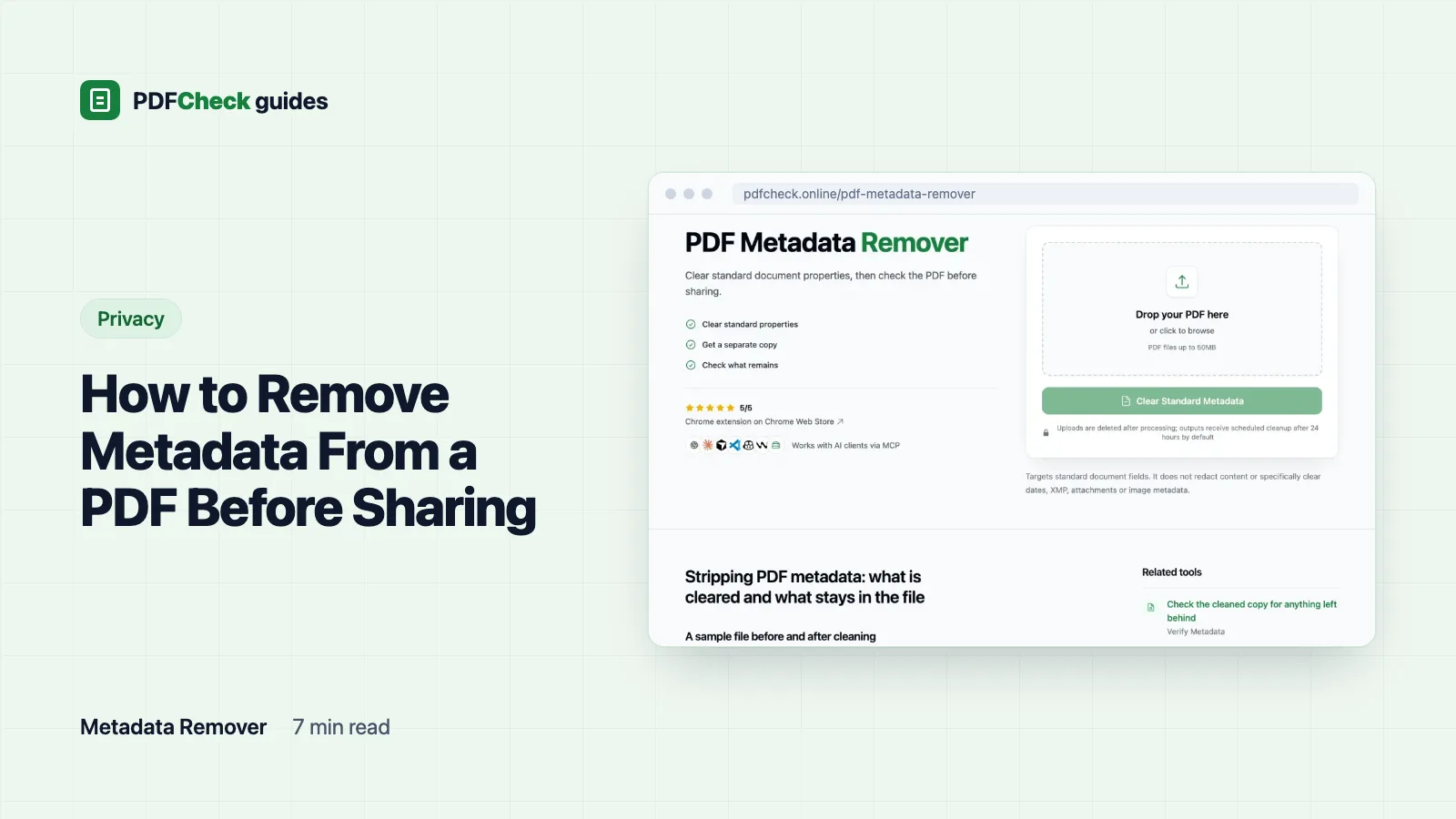
To remove metadata from a PDF, upload it to the PDF metadata remover and download the copy ending in _cleaned.pdf. It empties Title, Author, Subject, Keywords and Creator, replaces Producer with the name of the program that rewrote the file, and resets both dates to the time of cleaning. Then check the copy, because comments, attachments and anything written on the pages are still there.
That last sentence is the whole point of this guide. Clearing properties is a privacy step for the document's cover sheet. It does nothing to the document.
What a cleaned test file still contained
I built a two-page sample with every text property filled in, a custom XMP entry, bookmarks, a sticky-note comment, an attached file, a filled form field, text hidden under a white box and a JPEG carrying an EXIF author tag. Then I ran it through the same service the site uses, with Ghostscript 10.08.0, and inspected both files with Poppler and qpdf.
| Item | Original | Cleaned copy |
|---|---|---|
| Title, Author, Subject, Keywords, Creator | Filled in | Present but empty |
| Producer | ExampleWriter PDF Engine 4.2 | GPL Ghostscript 10.08.0 |
| Creation and modification dates | Original values | Both replaced with the processing time |
| XMP packet | 4,820 bytes, including the custom entry | 1,638 bytes, empty title and author, Ghostscript as producer, new document ID |
| PDF version | 1.7 | 1.4 |
| Bookmarks | 2 | 2 |
| Sticky-note comment with reviewer name | Present | Present, name included |
| Attached file | 1 | 1, still extractable |
| Form field | 1 field showing "Acme Parts" | No field; the text is now part of the page |
| Text hidden under a white box | Extractable | Still extractable |
| EXIF author tag inside the JPEG | Present | Still present |
| File size | 11,908 bytes | 7,436 bytes |
The top half of that table is what you asked for. The bottom half is what people forget to ask about: the reviewer's name in the comment, the attachment anyone can save out, the "deleted" text under the white box, and the camera data inside the photo all came through untouched.
How the properties get emptied
Ghostscript's pdfwrite device reads the whole document and writes a new file at PDF 1.4 compatibility, as its documentation describes. After the input it processes one small pdfmark instruction:
[ /Title () /Author () /Subject () /Keywords () /Creator () /Producer () /DOCINFO pdfmark
The DOCINFO pdfmark sets those six entries to empty strings. The order matters: placed before the input, the original values would be copied back over the blanks. Two values cannot stay empty. Ghostscript writes its own name and version as the Producer, and it stamps fresh creation and modification dates. So the original dates are gone, but the cleaned file does show when it was cleaned. The XMP packet is generated again from the emptied values, which is why the custom XMP entry in the sample disappeared.
If Ghostscript is unavailable on the server, a fallback rebuilds the file with FPDI and TCPDF. That route leaves the entries out rather than empty, records TCPDF as the producer, and drops bookmarks, comments, attachments and form fields because it copies page content only.
The steps, with a check at each end
- Look first. Upload the file to the PDF metadata checker and note what you want gone, such as an Author of
mkowalskior a Title ofOffer letter, Candidate B. On the command line, Poppler's pdfinfo prints the same fields. - Keep the original. The cleaned file is a new copy, and the rewrite changes more than the properties.
- Run the remover. There are no settings. Each run uses one check. The upload is deleted straight after processing, and the cleaned copy is removed by the hourly cleanup once it is more than 24 hours old.
- Check the cleaned copy. Upload it to the metadata checker again and read the dates and the raw XMP, not just the overview.
- Open every page. Form fields are now flat text; make sure nothing important depended on them, and that links still work.
- Rename the file if the name itself is revealing. The download keeps your original name with
_cleanedadded.
One thing to know before you upload: a troubleshooting log keeps the original file name, its size and the property values read before cleaning, and that log is not part of the 24-hour file cleanup. If that is a problem for a particular document, clean it on your own machine instead. The same Ghostscript command and pdfmark work locally.
Files the remover refuses
A file that needs a password to open is refused with "This PDF is password-protected." Ghostscript cannot read its pages, and before this check existed it returned a blank one-page file as a successful result, which is worse than an error. Remove the password with the password tool first, then clean the unlocked copy.
Files protected only by permission restrictions, such as no printing or no copying, open without a password but are still encrypted. Rewriting them removes the encryption and the restrictions with it, so the remover refuses them too, with a message saying the owner's restrictions would be removed. If dropping the restrictions is what you want, unlock the file with its owner password, clean that copy, and protect it again afterwards.
Every cleaned copy must also have the same page count as the original. If it does not, the run fails and no file is offered.
What else the rewrite changes
- Form fields are flattened. The sample's field became plain page text showing its value.
- Signatures are broken. The rewritten file is not the file that was signed. If a signature is needed, sign after cleaning.
- The PDF version drops to 1.4 and the file is re-encoded, so the size changes. The sample shrank from 11,908 to 7,436 bytes; a file with large images may behave differently.
- Bookmarks, comments and attachments survive on the Ghostscript route. Treat that as a warning, not a feature, when the goal is privacy.
This is not redaction
Redaction removes content from the pages. Drawing a white or black box over a name in an editor leaves the text underneath, and the sample proved it: the covered text was still extractable after cleaning. Someone can select it, copy it or search for it.
For page content, use a real redaction tool and verify the result by extracting the text afterwards. Adobe Acrobat's paid versions have redaction plus a sanitize option that removes a wider range of hidden information, including comments and attachments. For photos, strip EXIF data in an image editor before the picture goes into the document, because it passes through the PDF rewrite intact.
If something is still there afterwards
- The dates. They now show the cleaning time. If you need specific values instead, the metadata editor sets them, along with any other property you want to keep.
- An old title or author in a reader. Some readers show the Info dictionary and some show XMP. Both are regenerated on the Ghostscript route, so if a value persists, check whether it is written on the page itself.
- Names in comments or attachments. Delete the comments and attachments in a desktop editor before cleaning, or after it.
- Names on the pages. That is content. Edit the source or redact it.
Not sure which fields are worth removing? Why PDF metadata matters shows what each one reveals and when keeping it helps the reader. A clear Title, for example, is useful to screen reader users; remove what is personal or internal and leave what serves the person opening the file.