Do the work in Word, not in the PDF. Real heading styles, alt text, simple tables, a title and a language, then export with Document structure tags for accessibility ticked on Windows, or Best for electronic distribution and accessibility on a Mac. A PDF exported this way carries structure a screen reader can follow. One made any other way usually does not, and adding structure afterwards is the expensive route.
Then check the file. Below I explain what our checker can actually see, how three test files scored, and the Word steps that produce each signal.
What a quick checker can see
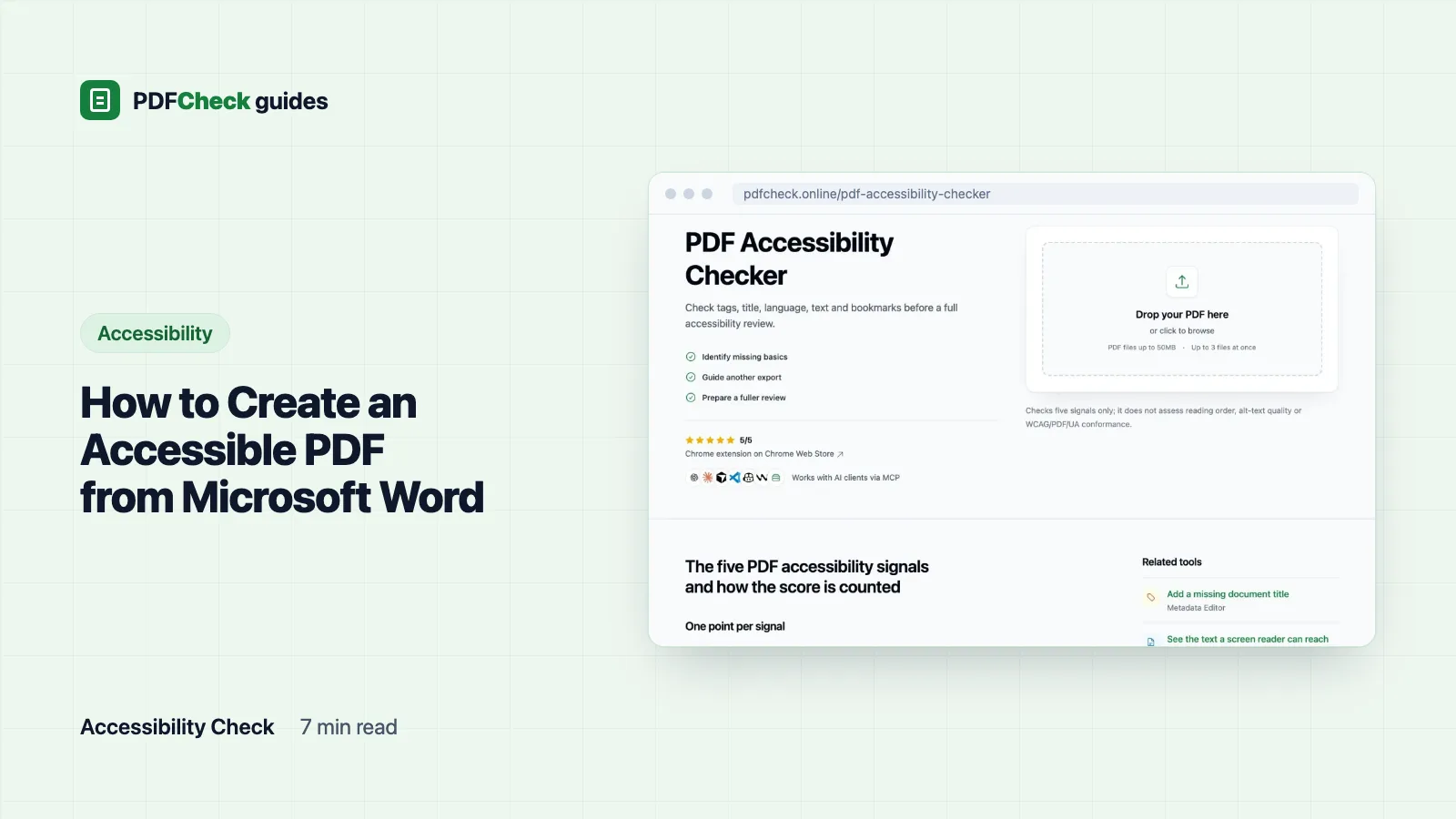
The PDF accessibility checker reads five yes-or-no signals and shows them as Signals Present out of 5. Nothing is weighted: 4 or 5 is green, 2 or 3 amber, 0 or 1 red. The color describes how many basics are present, not how usable the document is.
| Signal | Counted when | Word setting that produces it |
|---|---|---|
| Tagged PDF | pdfinfo reports Tagged: yes and the structure tree holds at least one element | The tags option at export |
| Document Title | The Info dictionary has a non-empty Title | File > Info > Title, with Document properties ticked at export |
| Document Language | The document catalog has a /Lang entry such as en-GB | Review > Language > Set Proofing Language |
| Text Content | More than 50 characters can be extracted from the whole file | Any normal export; scans fail this |
| Bookmarks / Outline | The outline has at least one bookmark | Create bookmarks using: Headings |
Three details catch people out. A title stored only in XMP metadata is not counted; it must be in the Info dictionary, which is also where W3C's technique PDF18 puts it. The 50-character text threshold applies to the whole document, so a scanned report with one typed cover line passes the text signal while every other page stays an image. And the language is read from the document catalog only, as technique PDF16 describes; language marks on single passages are not examined.
How three test files scored
I ran three synthetic files through the same service the site uses, with Poppler pdfinfo 26.10.0.
- A text-only export with a title but no tags, no language and no outline scored 2/5. Title and text passed. This is roughly what you get when the tags option is off.
- An image-only page, the kind a scanner produces, scored 0/5. Nothing to read, nothing to announce.
- A file that declared itself tagged but had an empty structure tree, plus
/Lang en-GB, a title, a paragraph of text and an outline containing zero bookmarks, scored 3/5.
That third file is the one I keep in mind. Until 12 October 2026 the checker only looked for the presence of the tag flag and the outline entry, and gave this file 5/5. It now requires at least one structure element and one bookmark. Even so, 5/5 only means the basics exist. Whether the tags describe headings, lists, tables and figures in the right reading order is something no five-signal check can tell you.
Setting up the Word document
Menu names below follow current Microsoft 365. Older versions word them a little differently.
Headings and lists
Select each heading and apply Heading 1, Heading 2 and so on from the Styles gallery. Word exports only real heading styles as heading tags; bold, larger text is just a paragraph to a screen reader. Keep the order logical, with Heading 3 under Heading 2. Use the bullet and numbering buttons for lists, because typed dashes are read as plain text.
Alt text
Right-click an image and choose View Alt Text. Say what the image tells the reader: "Bar chart: sales rose from 40 to 65 units between March and June" works, "Chart" does not. Tick Mark as decorative for images that carry no information. Where you can, set images to In Line with Text; floating pictures and text boxes are the most common cause of a scrambled reading order in the PDF.
Tables
Use tables for data only. On the Table Design tab tick Header Row, and in Table Properties, on the Row tab, tick Repeat as header row at the top of each page. Avoid merged cells and blank rows used for spacing.
Title, language and link text
Under File > Info, fill in the Title property with a real title, not the file name. On the Review tab, choose Language > Set Proofing Language and pick the document's language; mark passages in another language the same way. Write link text that says where the link goes.
Word's own checker
On the Review tab select Check Accessibility and fix what it lists. It catches missing alt text and header rows. It cannot judge whether your alt text is meaningful or your heading order makes sense, so treat it as a lint pass, not a sign-off.
Exporting the tagged PDF
Windows:
- Select File > Save As, or Save a Copy when AutoSave is on.
- Choose PDF as the file type, then select Options.
- Tick Document structure tags for accessibility. Set Create bookmarks using to Headings, and keep Document properties ticked so the title travels with the file.
- Select OK, then Save.
Mac: press Cmd+Shift+S, choose PDF under File Format, select Best for electronic distribution and accessibility (uses Microsoft online service), then Export. Microsoft's accessible PDF guide names this option specifically as the one that produces tags. The "Best for printing" route is not it.
Avoid any route that goes through a printer driver, such as Microsoft Print to PDF. A printer receives drawing instructions for each page, not the document's structure, so the result has no tags to carry. The same Options dialog also offers ISO 19005-1 (PDF/A) output if an archive or a portal demands it; that is a separate requirement from accessibility.
Checking the file you will publish
Upload the exported file to the accessibility checker and read the five rows. A missing title usually means the Title property was empty or Document properties was unticked. A missing language means the proofing language was never set. Missing bookmarks on a long document mean the bookmarks option was off, which matters little on a two-page letter and a lot on a sixty-page report.
Run the check on the final file, after any other processing. Tools that rebuild a PDF can quietly drop what Word put in. Our own metadata editor is an example: it copies page content only, and the tag tree used by screen readers is not carried across. If the title is wrong, fix it in Word and export again rather than patching the PDF.
If you want to see what a screen reader can actually reach, run the file through text extraction. If the text comes back empty or scrambled, the tags will not rescue it.
What none of this proves
A tagged export and a 5/5 score do not make a PDF conform to WCAG or PDF/UA. Those standards also require alt text on every figure, table header cells, a logical reading order, color contrast, labelled form fields, decorative content marked as artifacts and a PDF/UA identifier. None of that is tested by a five-signal check. For a formal review use Acrobat Pro's accessibility checker, PAC, or veraPDF in PDF/UA mode, and listen to the document with NVDA or VoiceOver. The article on what an accessibility checker can tell you walks through that fuller review.
Do I need Acrobat to make the PDF?
No. Word does the tagging at export. You may need Acrobat Pro or a similar editor to repair what Word gets wrong, such as complex tables or forms, but the clean route is to fix the Word file and export again.
Why is my PDF still untagged after export?
Either the tags option was off, or the file came out of a printer driver. Export again through Save As with the option ticked, then re-check.