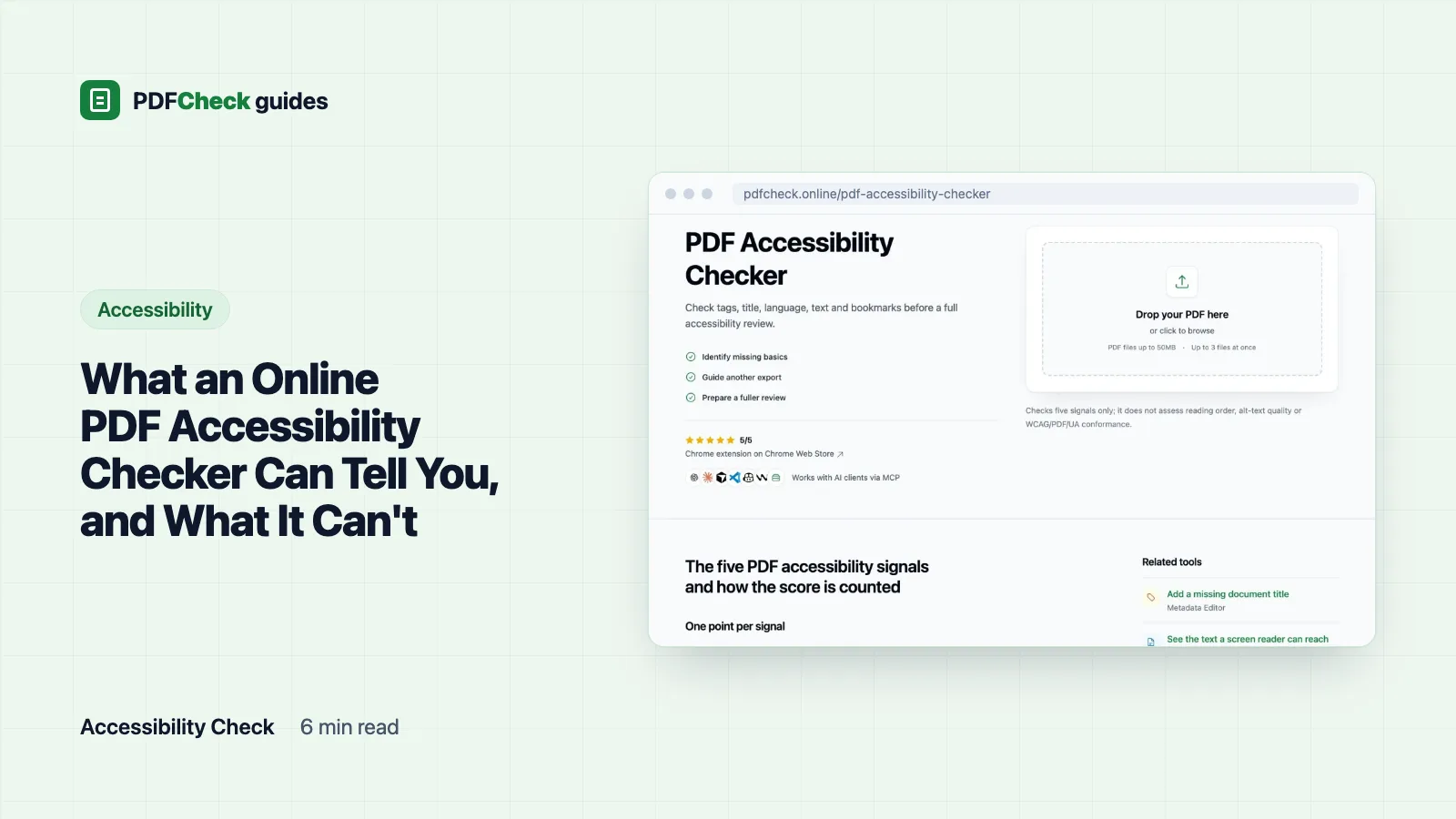
An online accessibility check tells you whether a PDF has the basics a screen reader needs: tags, a title, a language, real text and bookmarks. It cannot tell you whether the file meets WCAG or PDF/UA. I built the checker on PDFCheck, and I still treat its score as a first filter, not a verdict.
The five signals, and how each one is counted
The PDF accessibility checker reads five yes-or-no signals and shows the count as Signals Present out of 5. Nothing is weighted. A 4 or 5 shows in green, 2 or 3 in amber, 0 or 1 in red. The color says how many basics were found, not how usable the document is.
| Signal | Counted when | Why a reader cares |
|---|---|---|
| Tagged PDF | pdfinfo reports Tagged: yes and the structure tree holds at least one element | Without tags a screen reader guesses reading order from the layout, which fails on columns, tables and footnotes |
| Document title | The Info dictionary has a non-empty Title | Otherwise assistive technology announces the file name, such as scan_0042_final.pdf |
| Document language | The catalog has a non-empty /Lang entry, for example en-GB | With no language, the reader uses its default pronunciation rules, so English read with Lithuanian rules becomes hard to follow |
| Text content | More than 50 characters of text can be extracted from the whole file | No text means nothing can be read aloud, searched or reflowed |
| Bookmarks | The /Outlines dictionary has at least one entry | Long documents are tedious to move through without an outline; for a two-page letter it hardly matters |
Three files I measured
On 12 October 2026 I ran three small test PDFs through the same service the site uses, with Poppler pdfinfo 26.10.0 doing the first read. I built the files myself so I knew exactly what was inside them.
- A text-only export with a title and nothing else. Title passed ("Quarterly report"), text passed, and tags, language and bookmarks were missing. Score: 2/5. This is what a Word or LibreOffice export looks like when the tagged-PDF option is off.
- An image-only page, as a scanner produces. No title, no language, no tags, no outline, no extractable text. Score: 0/5.
- A file that looks accessible but is not. It carried the tagged flag, an empty structure tree,
/Lang en-GB, a title, one paragraph of text and an outline containing zero bookmarks. Title, language and text passed; tags and bookmarks did not. Score: 3/5.
The third file is the one that taught me something. Until 12 October the checker only looked for the presence of the tag flag and the outline entry, and it scored this file 5/5. It now requires at least one structure element and at least one bookmark before it counts either signal. Even so, a 5/5 result only means the basics are present. Whether the tags actually describe headings, lists, tables and figures in the right order is something the score cannot see.
Small details that change the score
- The title must be in the Info dictionary. A title stored only in XMP metadata is not counted. If you add one with the metadata editor, that writes the Info entry.
- The 50-character threshold applies to the whole document. A scanned report with one typed cover line can pass the text signal while every other page is still a picture.
- An outline with zero items does not count as bookmarks, as the third file showed.
- If the PDF parser cannot read the file, the tagged signal falls back to the pdfinfo flag alone, without the structure-tree check.
- Language is read from the document catalog only. Language tags on individual passages are not examined.
What no five-signal check can see
A PDF/UA or WCAG review covers much more than five flags. None of the following is tested by the checker, and all of it decides whether a document is actually usable:
- alternative text for figures, and whether that text says anything useful;
- table header cells, so a screen reader can say which column a number belongs to;
- a logical reading order through columns, sidebars and footnotes;
- color contrast between text and background;
- labelled form fields;
- decorative content marked as artifacts so it is skipped;
- the PDF/UA identifier in the metadata.
WCAG and PDF/UA are not the same test
WCAG 2.2 is the W3C's Web Content Accessibility Guidelines, a Recommendation since December 2024, with success criteria at levels A, AA and AAA. It applies to any digital content, PDFs included, and most policies ask for AA. The W3C publishes PDF techniques PDF1 to PDF23 showing how to meet the criteria in a PDF, from alt text (PDF1) to bookmarks (PDF2) to reading order (PDF3). The title signal above matches PDF18, which fills the /Title entry and turns on DisplayDocTitle so the viewer shows it.
PDF/UA is ISO 14289, a standard for how an accessible PDF file must be built internally. The two overlap, but a PDF/UA file is not automatically WCAG-conformant: contrast, for example, is a WCAG criterion that PDF/UA does not cover. And even a dedicated validator such as veraPDF, which checks PDF/UA-1 and PDF/UA-2, says plainly that it performs only the machine-verifiable checks.
A workflow that actually finishes the job
- Screen with the five signals. Upload one file, or up to 3 at once on Free and 50 on Pro and AI. The result is kept in your browser session and the upload is deleted once the check is done. Anything red here is cheap to fix and expensive to ignore.
- Fix the source, then export again. Turn on tagged output, set the document language and title, and build bookmarks from headings. Repairs made in the PDF are lost the next time someone exports a new version. If you work in Word, the steps are in how to create an accessible PDF from Word.
- Run a real PDF/UA checker. veraPDF in PDF/UA mode, the free PAC checker on Windows, or the Accessibility Checker in Acrobat Pro. Acrobat's report marks reading order and contrast as items that need a manual check, which is honest and worth copying.
- Listen to it. Open the file with NVDA on Windows or VoiceOver on a Mac. Tab through the links and form fields. If the reading order jumps around, no score will save you.
Why does a scan score zero?
A scan is a photograph of text. With no text layer there is nothing to extract, and scanners do not add tags, a title or an outline. Run OCR first, then tag the result; OCR output on its own is still untagged. The options are in how to search a scanned PDF. To see exactly what a screen reader could reach in any file, the text extractor shows the extracted text page by page.
Use the score for what it is good at: separating files exported with no accessibility support at all from files worth a proper review. Then do the proper review.