Ctrl+F finds nothing in a scanned PDF because each page is a photograph of text, not text. The fix is OCR, optical character recognition, which reads the letters in the picture and writes real characters you can search. Before you buy software or upload anything, spend a minute confirming that a missing text layer really is the problem.
Three tests that take a minute
- Drag across a word. If nothing highlights, or the whole page turns blue as one block, the page is an image.
- Copy a line and paste it into a plain text editor. Readable words mean a text layer exists. Boxes, symbols or nothing at all mean it does not exist, or it is broken.
- Zoom to 400 percent. Real text stays sharp at any zoom. Scanned text goes soft and blocky.
Repeat on a page from the middle and one from the end. Many files mix typed pages with scanned ones, and the first page is often a typed cover letter.
Proving it with the text extractor
If you want more than a feeling, upload the file to the PDF text extractor. It reads the text layer with a PHP parser, smalot/pdfparser, and shows the text page by page with word counts. It has no OCR of its own, which makes it a clean test: a page that comes back empty has no text instructions in it at all. The extractor reads the file and does not change it.
When I ran our three-page test scan through it, the first two pages returned zero words. That is the signature of a scan. A few other results are easy to misread, so here is what they mean.
| What the extractor shows | What is going on | Next step |
|---|---|---|
| Blank pages and 0 words everywhere | No text layer. A scan or a photo of a document. | OCR |
| Blank pages on a file you can clearly read | The file is encrypted and the parser skips decryption. Our password-protected copy returned 2 characters across 2 pages. | Remove the password with the password tool, then extract again |
| Letters replaced by symbols or wrong letters | The font maps its character codes to the wrong letters. Copying from a viewer gives the same junk. | OCR, treating the page as an image |
| Some pages full, others empty | Typed and scanned pages are mixed. | OCR only the empty pages |
One quirk to know: the word counter only recognises the letters A to Z, so 2026 counts as zero words and Zürich counts as two. A low count on a page of numbers does not mean the page is a scan. Look at the text itself.
Pick the route by what you need at the end
You need the PDF itself to be searchable
Use software that adds an invisible text layer behind each page image. The page looks identical, but Ctrl+F, copy and paste and screen readers now work. Adobe Acrobat has this built in. The free, open-source OCRmyPDF does the same from the command line on your own computer, which is the right choice for confidential scans. Keep the original and save the result as a new copy.
You only need the text
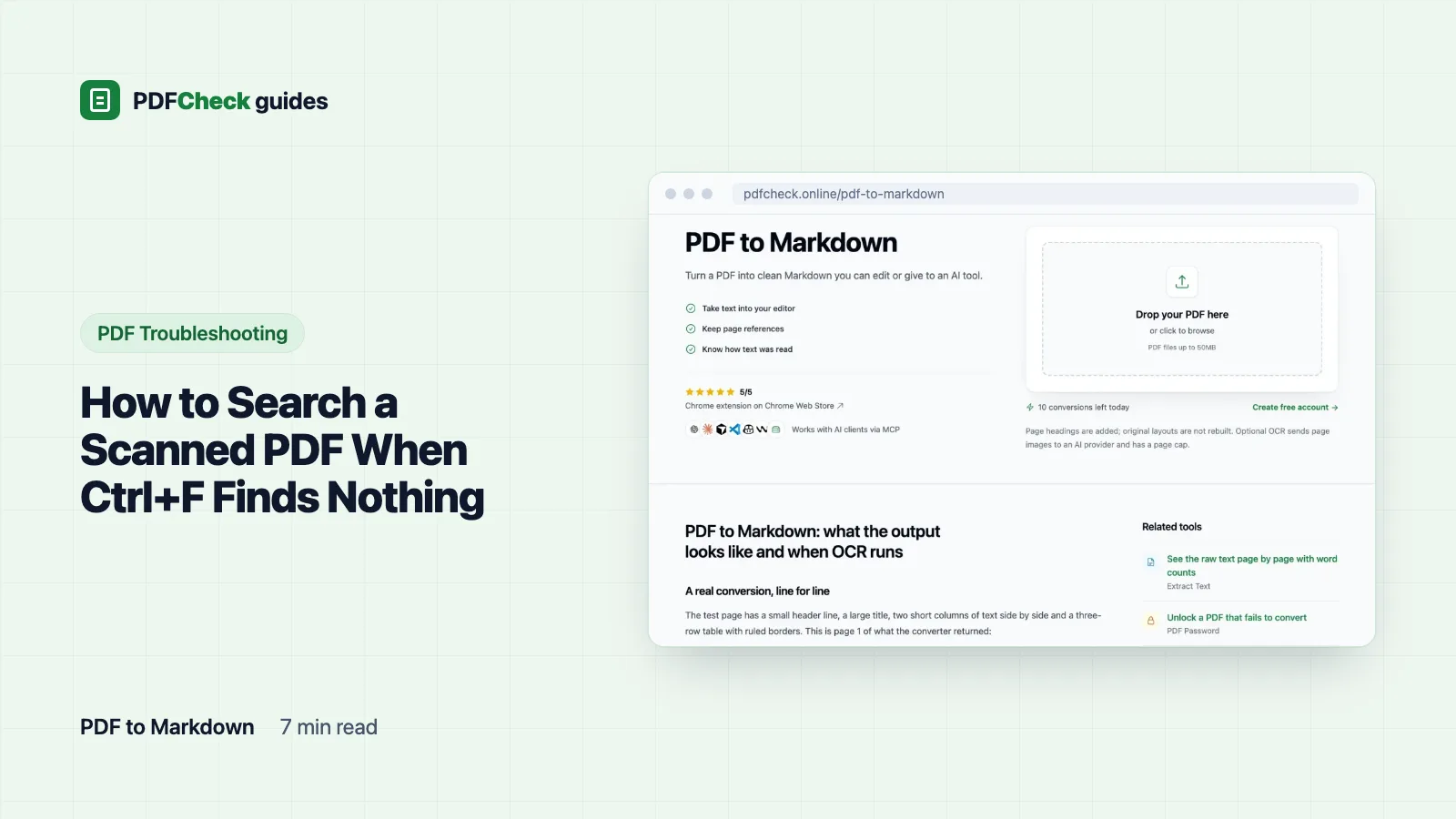
If you want to search, quote or paste the words and do not care about the PDF, PDF to Markdown gives you a text file. It reads the text layer first and only reaches for OCR when the document looks scanned. Here is how it decides.
It divides the total characters in the text layer by the number of pages. If the average is under 30 characters per page, it treats the whole file as a scan: Ghostscript renders the pages as JPEG images, and an OpenAI vision model reads them. The method label on the result then says Read with AI OCR. The decision is made once for the whole document, not page by page.
Our test set shows both sides of that line. The ten-page typed report averages about 2,900 characters per page, so nothing is sent to an AI provider. The three-page scan carries one tiny hidden line of text, 35 characters in total, which is 11.7 per page. That is under 30, so it goes to OCR. When I ran the same scan with OCR switched off, pages 1 and 2 came back as *No text on this page.* and page 3 held only the hidden line.
The output has a ## Page N heading for each page, so a search hit tells you where to look in the original. You can copy it or download it as a .md file named after your PDF.
The text is there but search misses words
If search finds lnvoice but not Invoice, an earlier OCR pass misread the letters. Search for shorter fragments, or run OCR again from a better scan. Converting the PDF to text will not help, because the mistakes are already in the text layer.
Where the converter's OCR stops
- Eight pages. Only the first 8 pages are rendered for OCR by default. A longer scan returns a note saying how many pages were processed. For a long scan, cut it into parts with the split tool first and convert each part.
- Mixed files. Twenty typed pages plus one scanned page average far more than 30 characters per page, so the file is read from its text layer and the scanned page shows as having no text. Split that page off if you need it read.
- Locked files. Our password-protected test file produced
OCR could not read this PDF right now., because neither the parser nor Ghostscript could open it. Unlock it first. - Daily allowance. Guests and Free accounts can convert 10 PDFs a day, Pro and AI accounts 100. OCR runs for all of them when it is available on our side. The plan changes the count, not the feature.
- Privacy. When OCR runs, images of the pages are sent to the OpenAI API. Files with a usable text layer never leave our server. The upload and any rendered page images are deleted when the request finishes, and the Markdown is not stored.
Getting a better read
OCR quality is mostly decided before the software sees the page.
- Scan at 300 DPI or more. The Tesseract project's quality guide says its engine works best on images of at least 300 DPI, and other engines are no happier with less.
- Straighten the page. Skewed lines break the engine's idea of where a line of text is.
- Dark text on a plain light background. Grey photocopies, stamps and text over photographs produce the most errors.
- Expect to check handwriting by eye. Printed text is the realistic target.
What OCR text is not
It is a draft of the page, not a copy. Typical swaps are 0 and O, 1 and l, 5 and S, and tables often come out in the wrong reading order. Before you rely on a name, date, amount or reference number, look at the page image. That matters most for contracts, invoices and anything you plan to quote.
A searchable scan is also not an accessible one. The W3C's technique PDF7 treats OCR as the first step: after it, the author still corrects suspect words, adds tags and fixes the reading order. Our accessibility checker will tell you whether basics such as tags, a title and a language are present at all.
And no, there is no way around it. Without OCR or retyping, a scanned page can be read by a person but never searched by a machine.