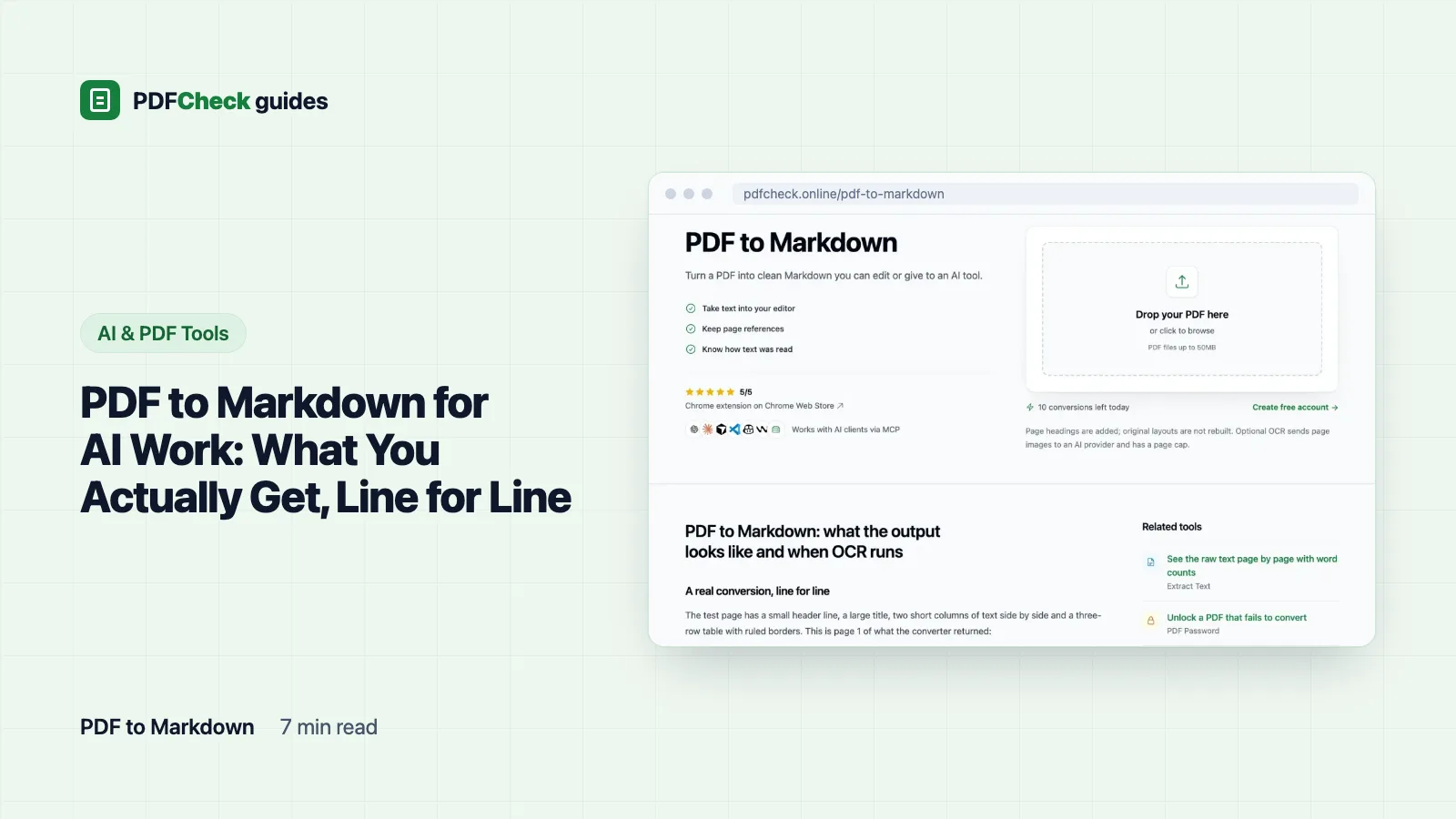
Converting a PDF to Markdown gives you the document's text as a plain file you can read, correct and paste into an AI tool. What it does not give you is layout. Headings, tables and columns come out as ordinary lines. I ran a test report through our converter so you can see exactly what that means before you trust the output.
Why convert instead of uploading the PDF?
Most AI tools accept a PDF directly, and for a quick question that is fine. Markdown earns its keep in three cases:
- You want to see what the model will read. When you upload a PDF, the text extraction happens out of sight. With a Markdown file you can spot a missing page or a garbled table before you ask anything.
- You want to fix a mistake once. Correct a misread figure in the file and every later prompt uses the corrected version.
- You are building a search index. Retrieval systems cut documents into chunks; OpenAI's file search, for example, splits files into 800-token chunks with 400 tokens of overlap by default. Page headings give those cuts somewhere sensible to land and let an answer point back to a page number.
Markdown itself is simple. The CommonMark specification defines a heading as a line starting with one to six # characters and a paragraph as text separated by blank lines. It defines no table syntax at all; pipe tables are an extension, which matters below.
A real conversion, line for line
I built a two-page inspection report with TCPDF and uploaded it as pump-station-inspection.pdf. Page 1 had a small header line, a large title, two short columns of text side by side and a three-row table with ruled borders. This is what the PDF to Markdown tool returned for that page:
# pump-station-inspection
## Page 1Harbour Works Ltd - internal
Pump Station Inspection
Left column. The intake screen was cleared on arrival. Flow resumed within ten minutes and the level alarm reset without a fault code.
Right column. Bearing temperature on pump two read high. The unit was isolated and a replacement bearing was ordered.
Asset [tab] Reading [tab] Status
Pump 1 [tab] 41 C [tab] OK
Pump 2 [tab] 78 C [tab] Isolated
Screen [tab] Clear [tab] OK
Five things stand out:
- The top heading is the file name without
.pdf, not the title printed on the page. - Each page gets its own
## Page Nheading when the PDF has more than one page. A page with no text is written as*No text on this page.*so page numbers stay in step with the original. - The printed title "Pump Station Inspection" came out as an ordinary line. Font size and weight are not read, so no heading is created from large or bold text.
- The table came out as tab-separated lines, not a pipe table. Most Markdown renderers will show it as one run of text. If you need the table, rebuild it with
|separators. - Lines break where they broke on the page, and the two columns came out one after the other because that is the order they were stored in this file. In other PDFs the storage order can be stranger than that.
The only cleanup that happens
- Windows and old Mac line endings become plain line feeds.
- Spaces and tabs at the end of a line are removed.
- Three or more line breaks in a row become one blank line, which Markdown treats as a paragraph break.
- Nothing else. Bold, italics, hyperlinks and images are not carried over, and no list markers are added. If you need the pictures, Extract Images pulls them out separately.
When does OCR take over?
The converter reads the embedded text layer first, then divides the total number of characters by the number of pages. Only when that average is under 30 characters per page does it treat the file as scanned and try AI OCR: Ghostscript renders the pages as JPEG images and an OpenAI vision model reads them. The decision is made once for the whole document, not page by page.
| Document | Average characters per page | What happens |
|---|---|---|
| My 10-page typed report | About 2,900 | Text layer only; nothing leaves our server |
| A scan with no text layer | 0 | AI OCR, if it is available |
| My 3-page scan with one tiny hidden line of text | 11.7 (35 characters in total) | AI OCR, because the average is under 30 |
| 20 typed pages with 1 scanned page added | Still far above 30 | Text layer only; the scanned page shows as having no text |
That last row is the trap. One scanned page inside a typed document is never OCR'd, because the average stays high. If that page matters, split it out and convert it on its own.
OCR has its own limits. By default only the first 8 pages are rendered, and the result says how many pages were processed when a scan is longer. The model can misread names, figures and dates, so check anything you will rely on against the original page. And the page images are sent to the OpenAI API, while files with a usable text layer are converted entirely on our server. When I ran my scan with OCR switched off, pages 1 and 2 came back as *No text on this page.* and page 3 held only the hidden line.
Three messages you might see
- OCR could not read this PDF right now. The file had no usable text and the OCR step could not run. My password-protected test file gave exactly this message, because neither the parser nor Ghostscript could open it. Unlock it with the password tool and try again.
- No readable text found in this PDF as the method label: neither the text layer nor OCR produced anything.
- You have used today's conversion allowance. Guests and Free accounts get 10 conversions a day, Pro and AI get 100. This is separate from the daily checks the other tools use.
Before you paste it into a prompt
- Compare the number of
## Pageheadings with the PDF's page count. - Read two or three pages of the PDF next to the same pages in the Markdown. Columns and sidebars are where the order goes wrong.
- Check every number, date and name you plan to use. This is where OCR, and sometimes the text layer, lets you down.
- Rebuild any table you need as a pipe table.
- Remove personal data you do not want to send to an AI provider.
The result page shows the page count, word count and which method was used: extracted from the text layer, read with AI OCR, or no readable text found. Copy Markdown puts it on your clipboard; Download .md saves it under your PDF's name. The uploaded PDF and any page images rendered for OCR are deleted when the request finishes.
Other ways to get the same text
If you have Poppler installed, pdftotext -layout file.pdf gives you the text layer with columns kept roughly in place, which can be better for two-column pages, though you add the headings yourself. Selecting all in Chrome or Preview and pasting into a text editor works for a page or two. And if you only want answers from one document rather than a file to keep, AI PDF chat on the AI plan shows page sources without any conversion step.
Markdown is the right choice when you want to keep, edit or reuse the text. Just read it once before the model does.