Check the file you will actually send, not the draft sitting next to it. Open it, compare it with whatever the recipient asked for, screen it for anything you did not mean to include, and only then attach it. For most files the whole pass takes five minutes, and most of the embarrassing mistakes I have seen would have been caught by the first two steps.
In short: rules, pages, text, structure, fonts, hidden data, signatures, size. Export, check, send. Never check, export, send.
1. What did the recipient ask for?
Look for written rules on the upload page, in the email or in the tender pack. The usual ones are a size limit, a PDF version, PDF/A, no passwords, a page size and a file naming pattern. Write them down as a short list and tick them off at the end.
If there are no rules, the steps below still catch the common problems. One more thing worth doing when you send to a stranger: tell them the file is coming and what it is called. Security advice such as CISA's guidance on email attachments tells people to be wary of unexpected attachments, even from names they know, so an unannounced PDF is more likely to sit unopened.
2. Have you looked at every page?
Scroll through the final PDF, not the Word or design file. Look for blank pages, sideways pages, cut-off tables and pictures that did not load.
Then look for tracked changes and comments. In Word, the Save as PDF dialog has an Options button with a Publish what setting. If it is set to Document showing markup, every edit and comment appears in the PDF. Microsoft's export page documents it, and the same dialog offers ISO 19005-1 compliant (PDF/A) if a recipient asked for PDF/A.
3. Can the text be selected and searched?
Press Ctrl+F (Cmd+F on a Mac) and search for a word you can see on the page. No match usually means the page is a scanned image. Recipients cannot search or copy it, and screen readers cannot read it.
For certainty, run the file through PDF text extraction. It has no OCR, so an empty page in the result means there is no text layer. If that is your situation, read how to search a scanned PDF before you send.
4. Is the file structurally sound, and does it carry anything odd?
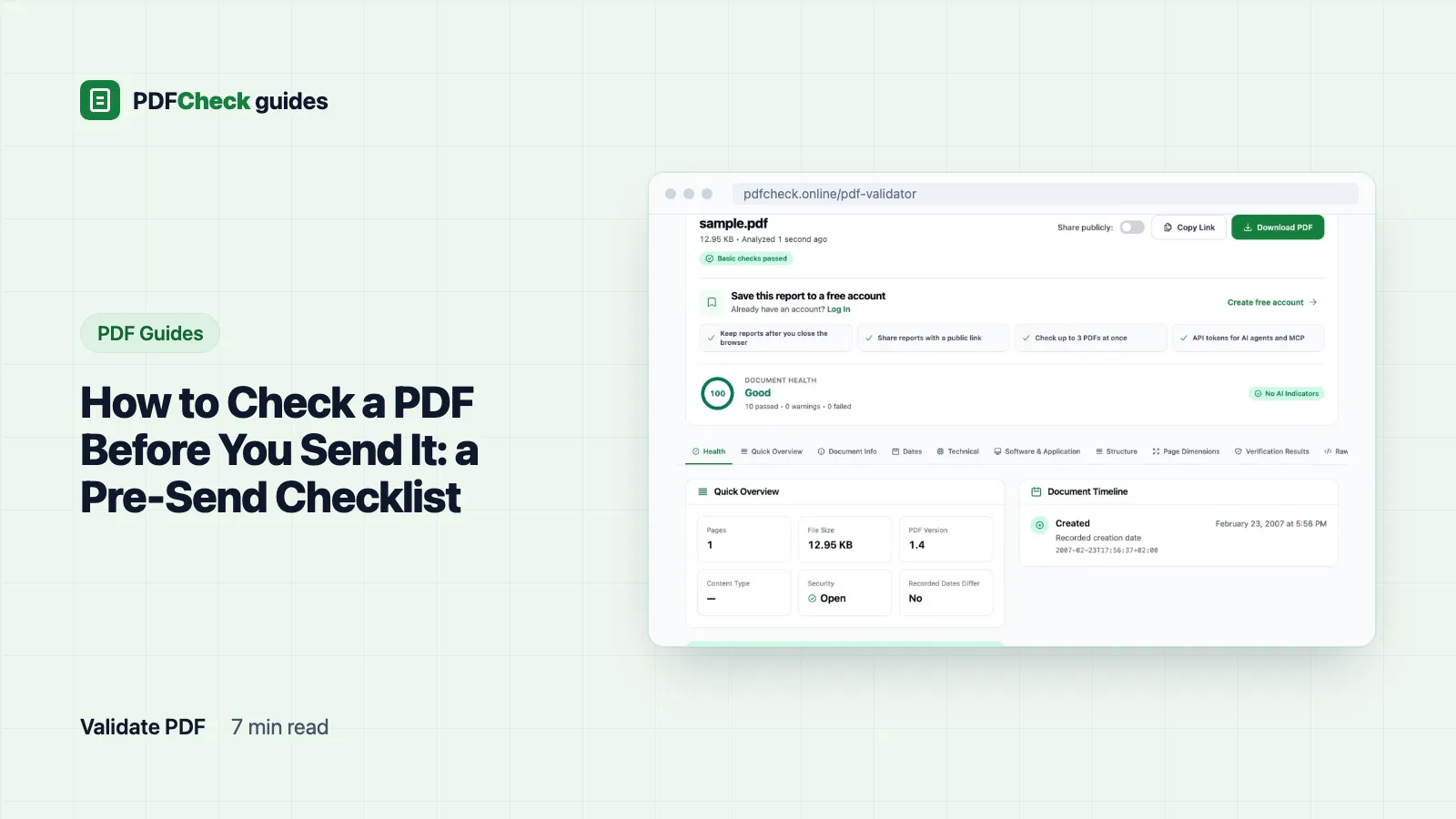
Upload the final file to the PDF validator. It reads the file's properties with pdfinfo, looks for an XMP packet and samples the first 2 MB of raw bytes for risky markers. Then it runs ten basic checks on file type, dates, software, page count and those markers.
The headline you want is Basic checks passed. That label is deliberately modest: it means the file opened, carried plausible metadata and showed no risky marker in the sample. It is not a standards test and it never says "Verified". Two things are worth knowing before you panic at a warning:
- A marker is a feature, not malware.
/JavaScriptis often a date picker or a print button,/OpenActionis often just "open at page 1", and/EmbeddedFileis normal in e-invoice PDFs that carry their XML data inside. The point is that some mail filters and portals block these features, so if you did not add them, find out where they came from. - A locked or damaged file is stopped before any check runs. The messages are
This PDF is password-protected. Please unlock it first or use our Password Unlock tool.andThis PDF appears to be corrupted or damaged. Please try a different file.If you see the second one, go back to the source and export again.
Here is what a file with a script looks like in practice. I added an OpenAction that runs app.alert(1) to a one-page test file. The Risky Content Check reported Found potential security risks: Contains JavaScript action markers, Contains OpenAction markers, the summary read PDF passed basic checks with 2 warning(s). Review the details below. and the Document health number was 90. Two warnings still pass; three or more flip the verdict to a review request. The line Could not determine content type under Content Analysis is expected on single uploads and does not count against the file.
5. Are the fonts embedded?
A font that is not embedded is only named in the file. On a machine without that font, the viewer substitutes another one with different widths, and columns, tables and forms can shift or overflow. Print shops reject these files for good reason.
The PDF font checker lists each font and whether it is embedded. The difference is visible in our test pages: the same one-page file written with Ghostscript's default settings was 3,649 bytes with Courier, Helvetica and Times-Roman all Not Embedded; written with the prepress preset it grew to 8,260 bytes and all three were embedded as subsets. Those three are standard fonts that viewers have traditionally supplied, so the first file still reads fine on screen. Arial or Calibri left unembedded is the real risk. The fix is to turn on font embedding in your export settings and export again.
6. What is hidden in the metadata?
The Author field may name a colleague who left two years ago, and the Title may still say Draft v3 - internal. Upload the file on the PDFCheck home page to read these fields, including the raw date strings.
To clear them, use the metadata remover. It rewrites the file with Ghostscript and blanks the six standard properties: Title, Author, Subject, Keywords, Creator and Producer. Know what it does not do. Ghostscript writes its own name as the new Producer and stamps fresh dates, custom XMP entries from the original are lost, and text hidden under white boxes or images stays in the file where it can be copied and searched. It is not a redaction tool. If you blacked something out, try to select or search the covered words in the final file. If you can find them, so can the recipient.
7. Will a signature survive?
Sign last. Any rewrite after signing, including compressing or cleaning metadata, removes or invalidates the signature. The signature checker lists each signature and tells you whether bytes follow the signed range, which is the sign that something was saved after signing. It does not verify the signature cryptographically or decide whether the certificate is trusted. For that, use Adobe Acrobat Reader or another trust-aware validator.
8. Is the file under the size limit?
If the file is too big, compress a copy with the PDF optimizer. It writes a new PDF 1.4 file and removes any digital signature, so it belongs before step 7, never after. Results vary a lot by content. Our ten-page body-text sample went from 17.6 KB to 11.3 KB on the Balanced level, and on the Quality Focused level it came out larger, at 20.2 KB, because that preset embeds fonts the original only named. Check the result's size and open it before you send it.
When the file is public or must be accessible
Public-sector and public-facing documents often have to be accessible. The accessibility checker counts five basic signals: tags, a title, a language, real text and bookmarks. A plain text export with a title and nothing else scored 2 out of 5 in our tests. Five out of five still only means the basics exist, not that the tags describe the document correctly. A full review needs a dedicated checker or a screen reader.
What none of this proves
These steps catch the mistakes people actually make. They cannot prove that a file is free of malware, that it is authentic, or that it conforms to PDF/A or PDF/UA. For PDF/A, run veraPDF, which implements the full PDF/A and PDF/UA specifications, or the validator the recipient names. Our own PDF/A screen checks eight indicators, which is useful for spotting a missing declaration or an unembedded font, but it is not a conformance test.
When everything is green, run the exact copy you are about to attach through the PDF validator one more time. If you re-exported during any step above, that is a new file, and the earlier results no longer apply to it.