"Invalid PDF" almost always means one of five things: the file is not really a PDF, it is cut off, it needs a password, it is over the size limit, or it breaks a rule the portal checks and your reader ignores. Keep the original, work down the ladder below, and when in doubt export a fresh copy from the program that made the document. That last move fixes more rejections than any repair tool.
| What you see | Most likely cause | Start at |
|---|---|---|
| Rejected the instant you pick the file | Not a real PDF, often a renamed Office file | Rung 1 |
| "Damaged", "corrupted", or only some pages open | Incomplete download or broken attachment | Rung 2 |
| "Encrypted" or "password-protected" | An open password or permission restrictions | Rung 3 |
| "File too large" | Over the portal's size limit | Rung 4 |
| "Must be PDF/A" or "unsupported version" | A standard or version rule | Rung 5 |
| Opens fine for you, still rejected | A rule the portal checks silently | Rung 6 |
Rung 1: Is it actually a PDF?
Renaming report.docx to report.pdf converts nothing. A real PDF begins with the characters %PDF-; a Word file begins with PK, because .docx is a ZIP container. Phones and browsers also like to save a web page or an image with a .pdf name.
Our upload screen catches these before anything else runs, and its messages tell you which case you have. I find them more useful than a portal's generic "invalid file":
- "The file is too small to be a valid PDF." Under 128 bytes. Usually a download that never really started.
- "The file does not contain a valid PDF header (missing %PDF- signature)." No
%PDF-in the first kilobyte. Often an HTML error page or an image saved as .pdf. - "The file appears to be a ZIP archive disguised as a PDF." An Office document or archive with the wrong extension. Export it to PDF properly.
- "The file contains an embedded Windows executable and cannot be processed." Do not try to fix this one; ask where the file came from.
The fix in every case is the same: go back to the source and use its own export. In Word, that is File > Save As or Save a Copy, then PDF as the file type, as Microsoft's save-as-PDF page describes.
Rung 2: Is the file complete?
A download that stopped early leaves a file with its end missing, and the end is where a PDF keeps the index to everything else. Desktop readers often rebuild that index silently; upload systems usually do not.
Here is what that looks like from our side. When I cut a test file off after 400 bytes and ran it through the PDF validator, pdfinfo could not open it and the tool stopped with "This PDF appears to be corrupted or damaged. Please try a different file." No report was saved. Before we added that check, the same file produced an almost empty report with four failed checks, which told nobody anything useful.
Download the file again, or ask the sender to resend it, and compare sizes with what they see. Chrome will often resume an interrupted download on its own if the connection comes back.
Rung 3: Does it need a password?
Every PDFCheck tool asks the same three questions before trusting a file, using Poppler's pdfinfo and falling back to qpdf: can it be opened, does it need a password, and does it have at least one page. If pdfinfo answers "Incorrect password", the file is marked as password required and you see "This PDF is password-protected. Please unlock it first or use our Password Unlock tool." If it opens but reports zero pages, it is treated as damaged.
There is a quieter variant. A file can open freely yet still be encrypted with permission restrictions, say no printing or copying. Tools that write a changed copy refuse these too, with "This PDF has permission restrictions set by its owner.", because rewriting the file would silently strip the restrictions. Some portals reject any encrypted file for the same reason.
If you know the password and are allowed to remove it, the PDF password tool writes an unencrypted copy. It checks the password with pdfinfo first, because Ghostscript happily writes a single blank page when given a wrong one; a wrong password now returns "Incorrect password. Please try again." and no file. It cannot recover a password you do not know.
Rung 4: Is it too big?
The PDF optimizer rewrites the file with Ghostscript and lowers image resolution according to the preset you pick. Its output is a PDF 1.4 file, which as a side effect also satisfies some portals that complain about newer versions. Compress a copy, check that it opens and reads correctly, then upload that.
Rung 5: Does the portal want a standard or version?
"PDF/A required" is a different problem from "invalid". Word's PDF export has it built in: in the same Save As dialog, click Options and tick ISO 19005-1 compliant (PDF/A). If a file you did not create fails PDF/A, see how to fix PDF/A validation errors. For version rules, how to check a PDF version explains where the number comes from and how to change it.
Rung 6: It opens for you but the portal still says no
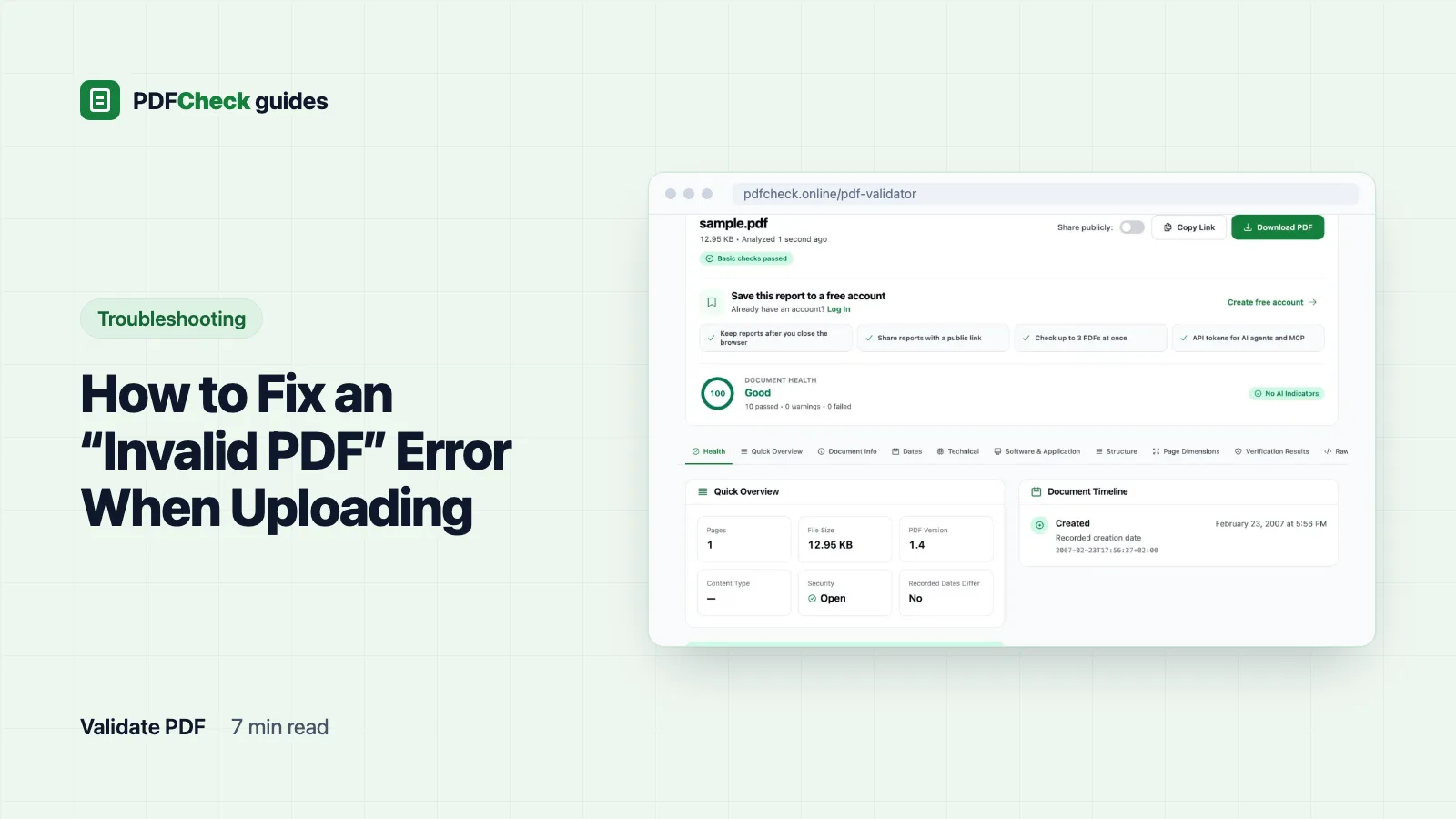
Now run it through the validator and read the warnings rather than the verdict. After the upload screen and the open check, it runs ten checks and samples the first 2 MB of raw bytes for markers that cautious portals reject: /JavaScript or /JS (20 points), /OpenAction (10), /EmbeddedFile or /Filespec (10) and /Launch (50). A marker means the feature is present, not that it is malicious; e-invoice PDFs, for example, carry their XML data as an embedded file.
To see the shape of a result, I added an OpenAction running app.alert(1) to a one-page test file. pdfinfo reported JavaScript: yes, the Risky Content Check listed JavaScript and OpenAction markers, the summary read "PDF passed basic checks with 2 warning(s). Review the details below." and Document health came out at 90. A portal that bans scripts would reject that file regardless of how healthy it looks, which is why the warnings matter more than the score.
If a risky marker is the problem, a fresh export from the source usually drops it. "Print to PDF" also removes it, at the cost of links, form fields, bookmarks and accessibility tags, so treat that as a last resort.
Repairing on your own computer
Two free command-line tools rebuild broken internal structure without a web upload, which matters for confidential files.
qpdf, by default, tries to reconstruct a damaged cross-reference table while copying a file; the qpdf manual documents --suppress-recovery as the switch that turns that off. So qpdf --check broken.pdf tells you what is wrong (exit code 0 clean, 3 warnings, 2 errors), and qpdf broken.pdf repaired.pdf writes a recovered copy when recovery is possible.
Ghostscript's PDF interpreter likewise tries to repair or ignore problems it meets, as the Ghostscript usage page puts it, so gs -o repaired.pdf -sDEVICE=pdfwrite broken.pdf often produces a clean file from a flaky one. It re-renders the whole document, though, so compare the pages afterwards.
If the file is signed, stop
Every fix on this page writes new bytes, and a digital signature covers the original bytes. Rewritten, re-exported, compressed or unlocked, the signature will show as broken. Check the original with the signature checker and ask the signer for a new copy instead.
What none of this proves
Passing all ten checks means the file opened, carried plausible metadata and showed no risky markers in the first 2 MB. It does not mean every object is well formed, that every page renders, or that the file meets PDF/A, PDF/UA or signature requirements. The validator does not repair anything, and markers inside compressed streams are invisible to it. Portals also check rules they never publish: page size, a ban on form fields, a maximum page count. The real test is the portal accepting the new copy.
Is it safe to upload a confidential PDF to check it?
That is your organization's call. The validator extracts a report and does not keep the PDF itself. If uploading anywhere is off the table, pdfinfo and qpdf --check on your own machine answer most of the same questions.