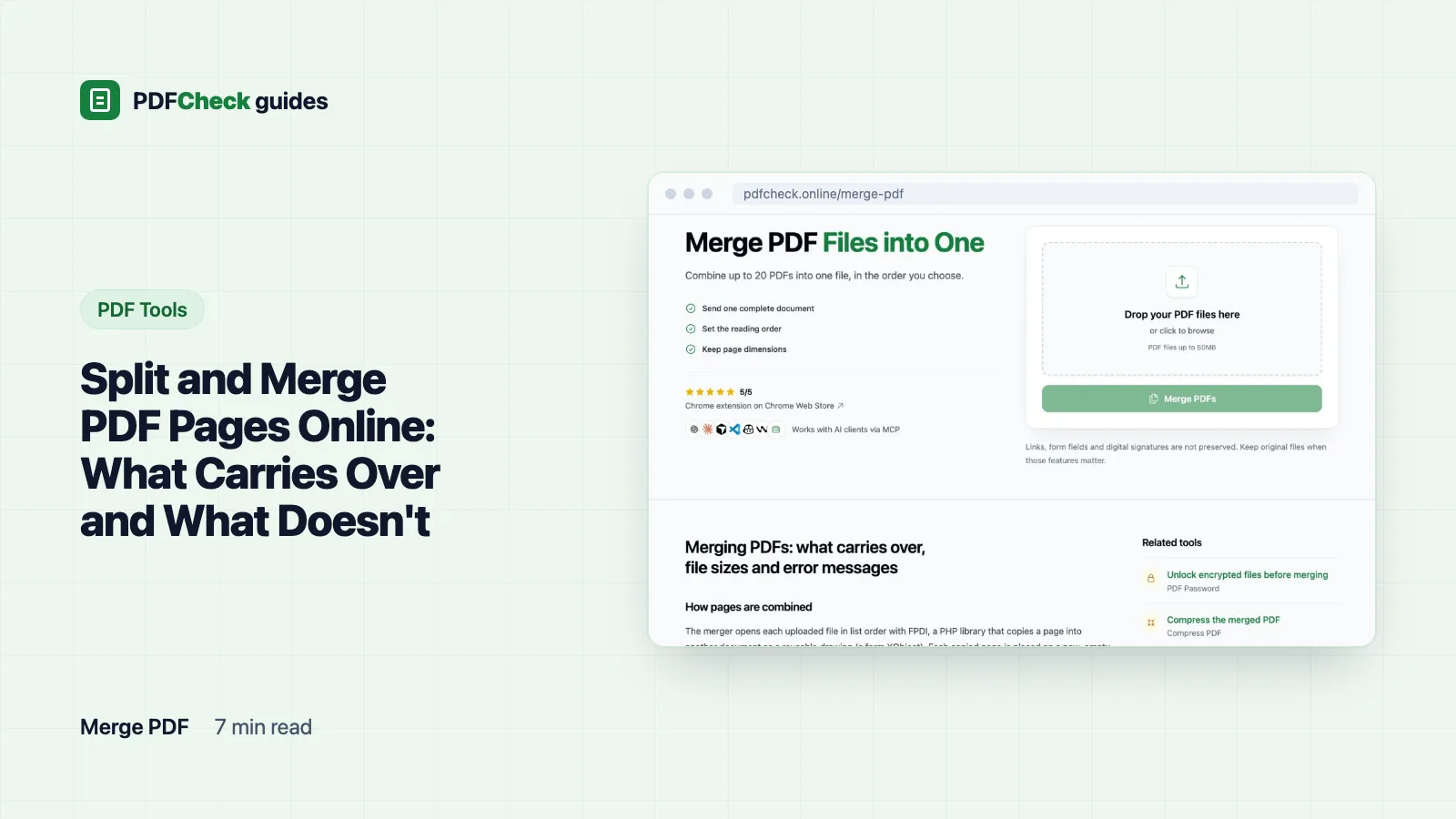
To pull pages out of a PDF, split it. To combine PDFs, merge them. To reorder or drop pages, split into single pages and merge back the ones you want. The catch with both PDFCheck tools is the same: they copy only what is drawn on the page. Bookmarks, links, form fields and signatures stay behind, and I have the measurements to show it.
Splitting: three modes, always one file per page
The PDF splitter has three modes: All Pages, Page Range (a first and last page, inclusive) and Single Page. There is no box for a list such as 1, 4, 7-9. For scattered pages, run a range or single split per block and merge the pieces afterwards.
Every mode writes one PDF per page. A range from 3 to 7 gives you five files, not one five-page document. Each file is named after its position in the original, so page 7 is page_007.pdf even when it is the only page you asked for. When more than one file comes out, Download All (ZIP) gives you split_pages.zip.
Page numbers that do not fit the document are adjusted rather than rejected. Here is what a 10-page test file gave me:
| Mode and input | Files written | Why |
|---|---|---|
| Range, 2 to 3 | page_002.pdf, page_003.pdf | Both pages exist |
| Range, 3 to 99 | Pages 3 to 10, eight files | The last page is capped at the document length |
| Range, 5 to 2 | page_005.pdf only | An end before the start is raised to the start page |
| Single page, 40 | page_010.pdf | A page past the end becomes the last page |
| Range with the end field cleared | Start page to the last page | An empty end page defaults to the last page |
A 0 or a negative number is the one input that is refused before upload.
Merging: 2 to 20 files, top to bottom
- Open the PDF merger and add between 2 and 20 PDFs. Each file is checked against your plan limit: 50 MB on Free, 100 MB on Pro and AI.
- Put them in order. The list says Drag to reorder files; if you prefer the keyboard, each file has Move up and Move down buttons. The output follows the numbered list from top to bottom.
- Merge and download
merged.pdf. The download only works in the browser session that created it.
Under the hood, FPDI opens each file in list order and copies every page into a new document as a reusable drawing, placed on a fresh page of exactly the same width and height. TCPDF then writes the result. In my test, five A4 pages and one US Letter page came out at 595 x 842 and 612 x 792 points, as they went in. Text stays selectable and vector drawings stay sharp because nothing is rendered to an image. One successful merge uses one daily check, however many files it joins.
What I measured carrying over
I merged a three-page file with three bookmarks, a web link on every page and a fillable text field, and in a separate run a file with a valid digital signature. Then I checked the outputs with qpdf, pdfinfo and pdfsig. Splitting the same files gave the same picture.
| Element | After split or merge | What I saw |
|---|---|---|
| Page size and orientation | Kept, per page | A4 and Letter pages kept their dimensions |
| Text, images, vector drawings | Kept | Copied as page content, not re-rendered |
| Bookmarks | Removed | 3 in, 0 out |
| Hyperlinks | Removed | 3 in, none in the output |
| Form fields | Removed | The text field disappeared; nothing left to fill in |
| Digital signatures | Removed | pdfsig found no signature in the output |
| Title, author, creator | Not copied | TCPDF is listed as producer; no title or author |
So: fill and flatten a form before merging if you need the answers in the result. If a source was signed, sign the final file or send the signed original alongside. And give the merged file a title with the metadata editor, or it will show up in viewers as merged.pdf forever.
Why split pages can be bigger than you expect
Each page file is a complete PDF with its own header, page tree and cross-reference table, so the pieces add up to more than the whole. My 13.6 KB, 10-page text file split into ten files of 6.9 KB each, 69.4 KB in total. Annoying, but harmless.
The real surprise came from a 4-page, 5.78 MB photo file. Every page pointed to one shared resource list naming all four photos. When a page is copied, its resources come along, so each single-page file carried all four photos and weighed 5.77 MB while showing one. Running the original through the compressor at Quality Focused first, which keeps the photos at full resolution but gives each page its own resource list, brought the split pages down to 1.46 MB each.
Quick test: split with All Pages and compare the sizes on the results page. If each one-page file is nearly as large as the original, compress the original and split that copy instead.
Merging goes the other way. Images are copied byte for byte, so a 5.78 MB photo document and a 3.17 MB scan merged into an 8.95 MB file. Small text files can shrink: three files of 6.4, 7.2 and 6.4 KB merged into one 10.8 KB file, because the shared overhead is written once. If you need the combined file smaller, compress after merging rather than before.
Reordering and removing pages
Split with All Pages, then merge only the pages you want, in the new order. To drop page 4 from a 10-page file, merge pages 1 to 3 and 5 to 10. A merge takes at most 20 files, so for longer documents work in rounds: merge the first 20 pages, then merge that result with the next 19, and repeat.
Errors you may hit
- "Merge failed: This PDF document is encrypted and cannot be processed with FPDI." (The splitter says "Split failed".) This also fires on files that open without a password but restrict printing or copying. Remove the protection with the password tool, then use the unlocked copy.
- Object-stream files no longer fail. PDF 1.5 introduced compressed object streams, and Ghostscript's pdfwrite writes them by default, so a lot of modern files have them. Until 12 October 2026 these stopped both tools with a message about an unsupported compression technique. Now the file is rewritten with a classic cross-reference table first, using qpdf or Ghostscript, and then imported.
- The upload is refused when fewer than two or more than 20 files are added, or one file is over your plan limit. A failed run does not use a daily check.
Doing it without PDFCheck
Acrobat's Combine Files and Organize Pages tools do all of this and keep bookmarks and links, which is the honest trade-off: a desktop editor rewrites less. On the command line, qpdf is the tool I reach for. qpdf in.pdf --pages . a.pdf b.pdf 1-z:even -- out.pdf keeps the document-level data from in.pdf and appends all of a.pdf and the even pages of b.pdf; qpdf --object-streams=disable rewrites a file without object streams, which is the same fix our tools now apply. Poppler's pdfunite and pdfseparate do the simple cases, as long as the inputs are not encrypted.
Before you send the result
- Page through it once. A file added in the wrong slot shows up as a block of misplaced pages.
- Check where two files meet, and look for a landscape page that should be portrait or the reverse.
- If the originals had a bookmark table of contents, tell the reader it is gone, or add one back in a desktop editor.
- For a structural once-over of the final file, run it through the PDF validator.