Chrome opens most PDF links in a tab instead of saving them. From that tab you can read every page, search the text and open Document properties to see which program made the file and when. That is a good first look. It is not a security scan, and nothing in the viewer proves a document is genuine.
Here is the routine I use before I act on a PDF someone sent me, and where I switch to other tools.
If Chrome downloads PDFs instead of opening them
Chrome's default is to open PDFs in the browser. If yours drop straight into the Downloads folder, the setting has been changed, possibly by you a long time ago. Google's Manage PDFs in Chrome page gives the fix:
- Type
chrome://settings/content/pdfDocumentsin the address bar and press Enter. - Under Default behavior, choose Open PDFs in Chrome.
You can also reach it through Settings, then Privacy and security, Site settings, Additional content settings, PDF documents. The direct address is quicker.
A two-minute check in the viewer
- Look at the address bar first. An invoice from your supplier should load from your supplier's domain. A PDF from a file-sharing host you have never used is a reason to slow down before you read on.
- Scroll every page. Blank pages, a page that is one big picture with a "click here" button, or content that does not match the file name are all worth a question to the sender.
- Search for a word you can see. Press Ctrl+F (Cmd+F on a Mac). If Chrome finds it, the page has real text. Google says Chrome now runs text recognition (OCR) on scanned PDFs on your device, so even a scan becomes searchable after a moment.
- Open Document properties. Click the three-dot menu in the top-right corner of the viewer and choose Document properties.
The viewer also has Zoom in, Zoom out, Fit to page, Fit to width and Rotate. Use 200% on anything with small print; fake invoices often have a bank account number swapped in a different font.
What Document properties can and cannot tell you
Document properties are the facts a PDF stores about itself: title, author, subject, keywords, the application and PDF producer, the created and modified dates, the PDF version, the page count and page size. The producer is the software that wrote the bytes, for example Microsoft: Print To PDF or Skia/PDF.
Treat these as clues. A contract that was "signed last year" but whose PDF was created this morning deserves a question. A title that does not match the file name is often just an old template. Both are easy to change with any PDF editor, so they cannot prove who made a file or when. Our metadata checker shows the same fields with the raw date strings and notes when the dates disagree with each other, but it is reading the same editable text.
Chrome's viewer is not a virus scan
Chrome has to fetch the file to display it, but it stays in the browser until you click the download icon. When you do download, Google's download help page explains that Safe Browsing sorts risky files into four groups: Dangerous (known malware), Suspicious (uncommon files or archives that may hide malware), Unverified (downloaded with Safe Browsing off) and Insecure (fetched over plain HTTP). A "Dangerous download blocked" message means Chrome found malware and stopped the file.
Two things follow. First, a PDF you only viewed in a tab did not go through that download check. Second, Google's own advice is to take the warnings seriously, because attackers routinely tell people to ignore them. If a PDF arrives unexpectedly, confirm with the sender through a channel that is not the same email thread.
When I want more than the viewer shows
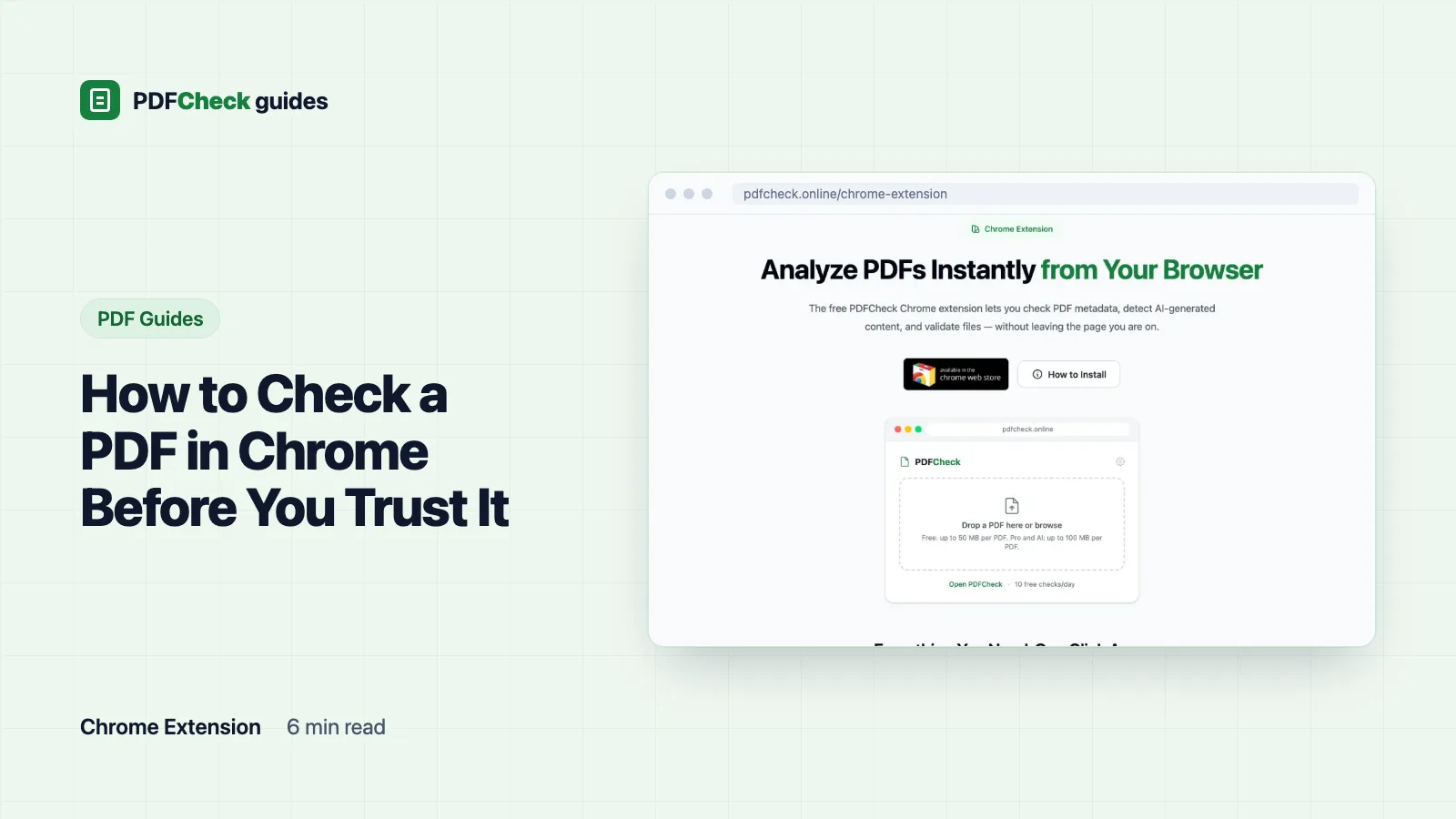
For a file I am going to rely on, I save it and run it through PDFCheck. On the extension page the flow is:
- Click the PDFCheck icon in the toolbar. The popup says Drop a PDF here or browse; drag the saved file onto it or pick it with the file picker.
- The result lists the metadata, indicators of software often used by AI tools, and quick pass or fail checks. View full report opens the complete analysis on the site.
- Without an account you get 10 checks a day. The gear icon opens settings with a Paste your API token... field; a token from a free account raises that to 100 a day.
Files can be up to 50 MB on the Free plan and 100 MB on Pro and AI. The extension installs from the Chrome Web Store and works in Chromium browsers such as Edge and Brave. The PDF is sent to PDFCheck over HTTPS, so this is not a fully offline check; if a document must not leave your machine, use a local tool instead.
Like any extension, read the permissions Chrome lists before you add it. The current manifest asks for activeTab, storage, contextMenus and scripting, plus access to pdfcheck.online. Google's extensions help shows how to review or remove any extension later.
What the deeper check actually looks at
The full report on the site runs the same ten screening checks as the PDF validator. Besides the metadata, it samples the first 2 MB of the raw file for markers such as /JavaScript, /OpenAction, /EmbeddedFile and /Launch. When I added a one-line script that runs on open to a test file, the report flagged "Contains JavaScript action markers, Contains OpenAction markers" and the summary dropped to "passed basic checks with 2 warning(s)".
Read those results with care. A marker means a feature is present, not that it is malicious; plenty of legitimate forms use JavaScript for date fields. The search does not decode compressed streams or look past 2 MB, so it can miss things too. And the AI-tool indicators report which software wrote the file, not whether a person or a model wrote the words.
What none of this proves
Chrome shows you what a file says about itself. PDFCheck shows you a bit more of the same, plus a few structural signals. Neither proves a PDF is safe, unchanged or written by the person named in the Author field. For a document where that matters, the guide on checking whether a PDF has been edited explains what stronger evidence looks like.
Can I sign a PDF in Chrome?
Google's help page says you can select Draw, then Pen, and draw a signature, then save with With your changes. That is a picture of your signature, not a digital signature, and it carries no certificate or tamper evidence.
Why does the tab title differ from the file name?
Chrome shows the title stored inside the PDF when there is one. It can be left over from an old document the author copied. Annoying, but by itself it is not a warning sign.