To password protect a PDF online, upload the finished file, set a long open password, download the protected copy and open it yourself to make sure it asks. Then send the password by a different route from the file. The encryption is the easy part. Nearly every failure I have seen comes from the password being guessable or travelling in the same email as the document.
In short: finish and clean the file, protect it, test it, and never put the password in the same message as the PDF.
Before you lock it
- Finish the content. Our tool, and most others, write a new file. Every edit after that means unlocking, editing and protecting again.
- Clean the metadata first. The Author field often names whoever set up the software. Run the copy through the metadata remover now, because it refuses files that need a password to open.
- Check for digital signatures. Protecting rewrites the whole file, and the signature does not survive. A signed test file that I protected and then decrypted again with qpdf contained no signature at all. If the file must stay signed, send it through a protected channel instead of protecting the file.
Protecting the file, step by step
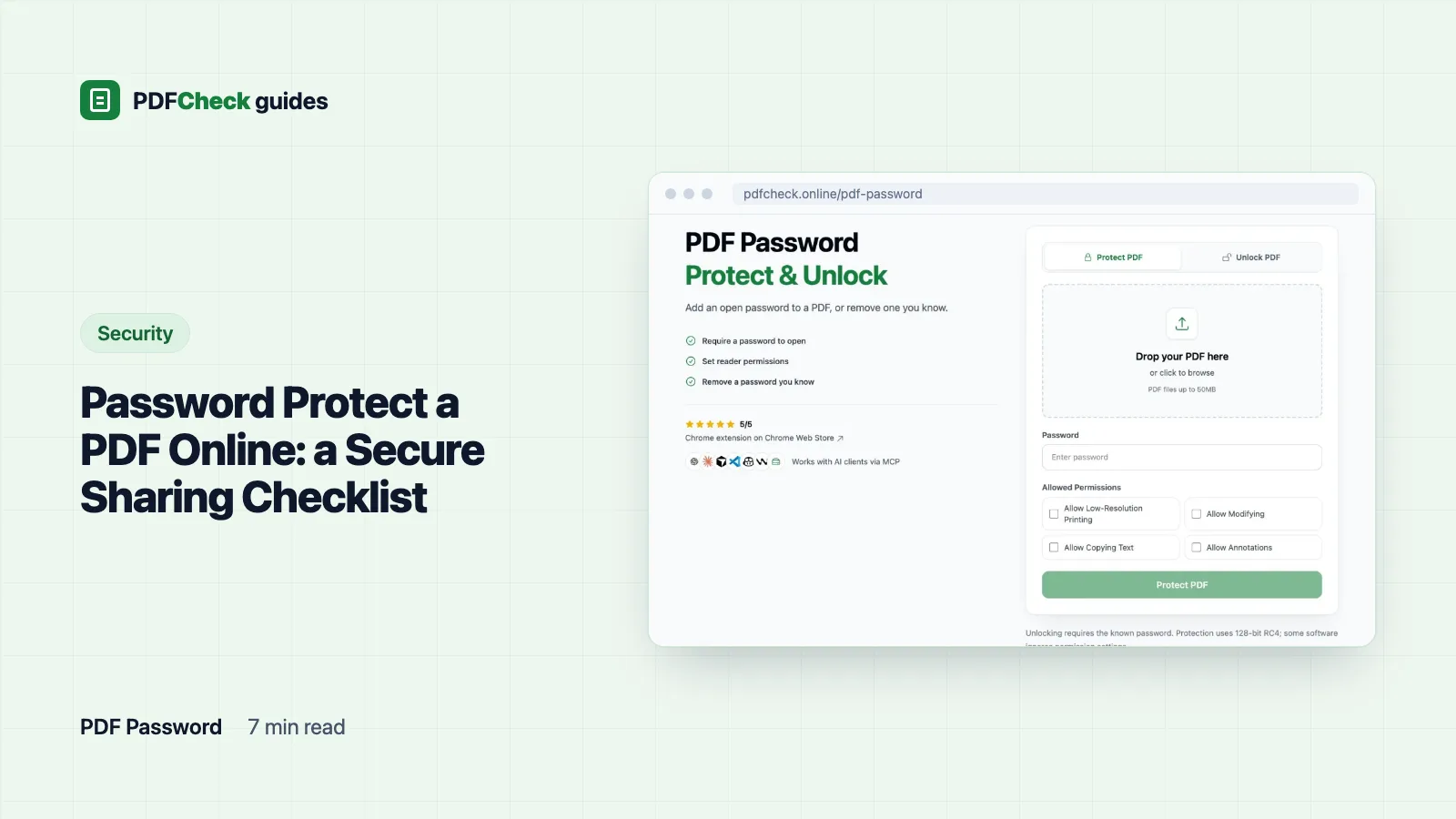
- Open the PDF password tool on the Protect PDF tab.
- Upload one PDF. Files up to 50 MB on the Free plan, 100 MB on Pro and AI. A file that already needs a password to open is refused rather than double-locked.
- Type the open password, anywhere from 1 to 128 characters. Use far more than 1.
- Under Allowed Permissions, tick only what the recipient needs: Allow Low-Resolution Printing, Allow Modifying, Allow Copying Text, Allow Annotations. Nothing ticked means nothing allowed.
- Download the result from the same browser. The link is tied to your session, and the file is removed by cleanup once it is more than 24 hours old.
Behind the button, Ghostscript rewrites the PDF with the standard security handler, revision 3, and a 128-bit key: -dEncryptionR=3 -dKeyLength=128. When I inspected a protected test file with qpdf, its encryption dictionary read /Filter /Standard /V 2 /R 3 /Length 128 and pdfinfo reported algorithm:RC4. That matches Ghostscript's pdfwrite documentation, which allows revisions 2 and 3 and key lengths from 40 to 128 bits. The output is a PDF 1.4 file, the Producer field becomes GPL Ghostscript, and the size changes because everything is rewritten: our 11.2 KB test file came out at 5.0 KB.
A PDF can carry two passwords. Yours becomes the user password, the one a reader asks for. The owner password, which is what lets someone lift the permission settings, is generated fresh as a random 32-character value for every file and thrown away. Nobody can use it later, including you, so knowing the open password alone does not let a recipient remove the restrictions.
What the four checkboxes really do
Each box switches on one bit of the permission value, and everything else stays off. I protected the same file three times and read the flags back with qpdf:
| Permission | Nothing ticked | Print only | All four ticked |
|---|---|---|---|
| Print at low resolution | No | Yes | Yes |
| Print at high resolution | No | No | No |
| Copy or extract text and images | No | No | Yes |
| Change page content | No | No | Yes |
| Add or change comments | No | No | Yes |
| Fill in form fields | No | No | No |
| Insert, delete or rotate pages | No | No | No |
| Extract text for accessibility tools | No | No | No |
Two consequences follow. Printing is only ever low resolution, so some readers will print a rasterised, softer copy. And accessibility extraction is never granted, so some screen readers may not read the protected file. If the recipient needs to fill in a form or relies on a screen reader, a protected copy from this tool is the wrong choice. Protect it elsewhere with the right flags, or leave it unprotected and protect the channel instead.
Choosing a password that holds
Length beats cleverness. CISA recommends at least 16 characters, random and unique, and suggests a passphrase of four to seven unrelated words. NIST's SP 800-63B sets a floor of 15 characters for single-factor passwords and tells systems not to impose composition rules at all, because forced symbols make passwords harder to remember without making them much harder to guess. A phrase of five unrelated words is long, memorable and easy to read out over the phone.
Avoid anything that can be guessed from the document itself: the client name, the invoice or contract number on page one, dates of birth, postcodes, phone numbers, and any password you use for an account. Do not reuse the same password across clients either, because one leaked password then opens every file you ever sent.
Test it, then share the password separately
Open the downloaded copy in an ordinary PDF reader. Confirm that it asks for the password, that the password works, and that every page, link and form field is still there. The tool compares page counts before it offers the download, but your eyes are the final check.
Then split the two things an attacker would need. Send the PDF by email and the password by phone or text message. Or send the file through a sharing link and the password through a password manager's sharing feature. For repeat recipients, agree a passphrase in person once. Keep an unprotected original in a safe internal place, because a forgotten password is not recoverable from the file.
Removing a password you know
The Unlock PDF tab takes a file and its Current Password and writes a copy with no encryption and no restrictions. It first checks with pdfinfo that your password actually opens the file, as either the open or the owner password, and only then lets Ghostscript write the copy. That order matters: Ghostscript 10.08 does not treat a wrong password as an error. Given one, it exits normally and writes a single blank page, which is exactly what this tool used to hand back. Now a wrong password returns Incorrect password. Please try again. and no file is created.
In our tests the unlock worked on files protected by this tool, on an AES-256 file made with qpdf, and on a restriction-only file that opens without a password but blocks printing and copying, provided the owner password was supplied. Any other text on that last file was rejected. There is no recovery or cracking feature. Use it only for files you are allowed to open, and unlock before you try to merge or split, because the merge and split tools refuse every encrypted file, restriction-only ones included.
What 128-bit RC4 cannot do
It stops casual opening. It is not the strongest option available. RC4 at 128 bits opens in practically every reader, old and new, which is the reason it is still used, but the PDF 2.0 standard moves away from it. The Library of Congress's format description for PDF 2.0 puts it plainly: only AES-256 in a secure scheme is encouraged. For documents where strong confidentiality matters, use software that writes AES-256. Adobe Acrobat Pro offers it, and so does the free command-line tool qpdf, whose manual documents --encrypt with a 256-bit key that uses the AES-based format from the PDF 2.0 specification.
Permission flags are instructions, not encryption. Mainstream readers honour them; any program that can open the file can choose not to. And once someone has the password, nothing stops them copying, photographing or forwarding what they see. A password cannot recall a copy you already sent, and it does not remove metadata, which is why cleaning the file comes first on this checklist.