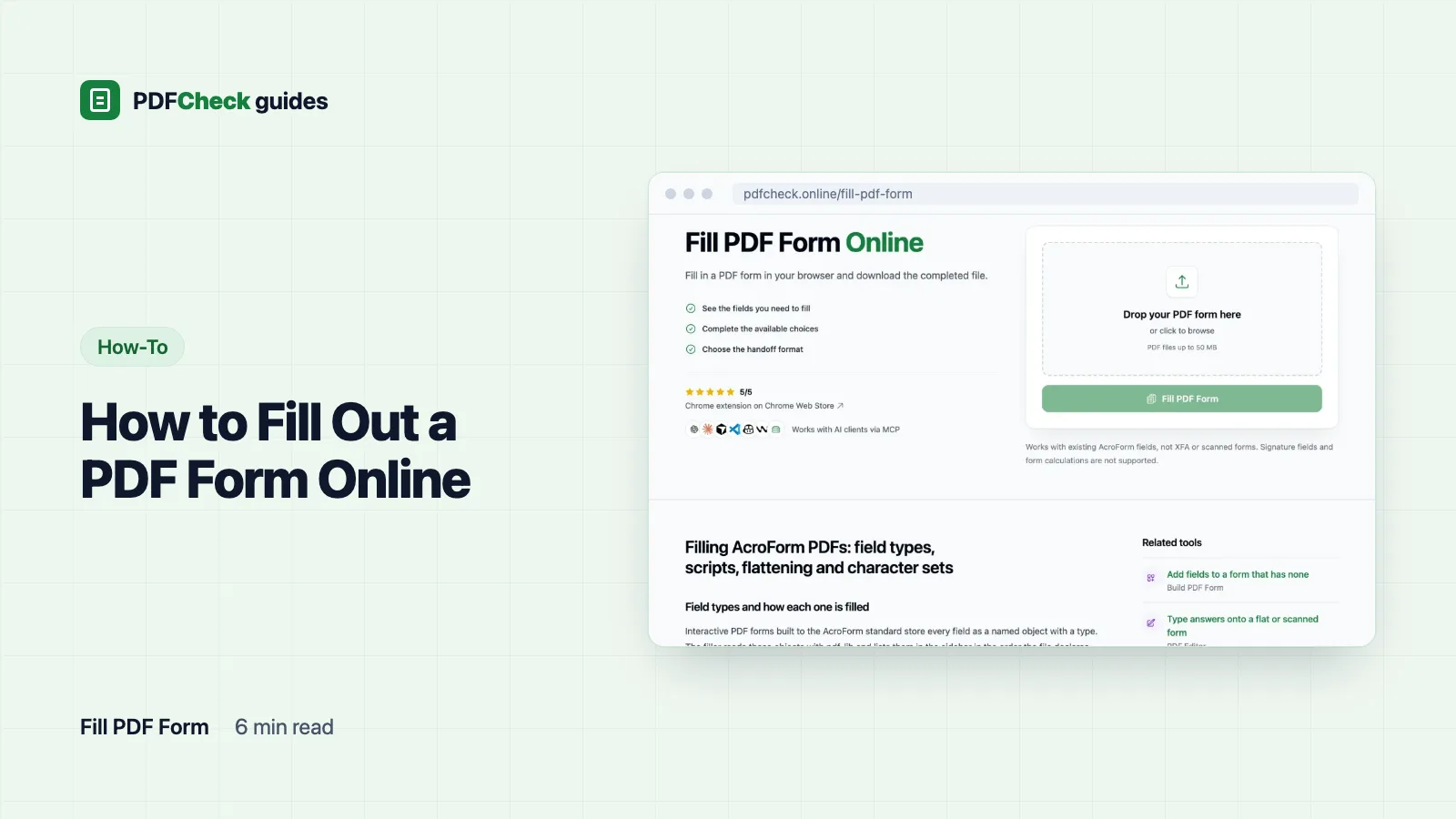
If the PDF has real form fields, upload it to a form filler, type into the fields, and download the completed copy. If it has none, no filler can help; you either type text onto the page or add fields first. Finding out which kind you have takes ten seconds, so start there.
Does your PDF have fillable fields?
Open it in Chrome, Edge or Acrobat Reader and click an answer line. If a text cursor appears, or the boxes are shaded as soon as the file opens, the form has interactive fields. If nothing happens, the lines are only printed on the page. Forms that were scanned, or converted from another format, often arrive this way; W3C's technique PDF23 notes that converted documents frequently fail to keep their fillable fields.
Interactive fields come in two flavors. AcroForm is the standard kind: each field is a named object fixed to a spot on the page, and it is what nearly every downloadable form uses. XFA is an Adobe format for dynamic forms whose sections can grow as you type; it stores fields as XML that most browsers and web tools cannot read. If a form opens as a single page saying "Please wait..." you are probably looking at XFA, and Acrobat Reader is the practical way to fill it.
What the filler can set
The PDFCheck form filler reads AcroForm fields with pdf-lib, an open-source JavaScript library, and lists them in a sidebar in the order the file declares them. On my nine-field test form it found all nine.
| Field type in the PDF | Shown as | What you can set |
|---|---|---|
| Text, single or multi-line | Text field, also typed directly on the page | Any text; existing values load first |
| Checkbox | Checkbox | Ticked or not |
| Radio group | Radio group | One option per group |
| Combo box | Dropdown | One of the options the PDF defines |
| List box | Dropdown | One option, even where the form allows several |
| Signature | Listed | Nothing; signing needs a signing application |
| Push button and other types | Listed as unknown | Nothing |
Filling the form, step by step
- Open the form filler and click Fill PDF Form to upload the PDF. The upload uses one daily check (100 on the Free plan) and may be up to 50 MB on Free or 100 MB on Pro and AI.
- Type into the fields on the page or in the sidebar; the two stay in sync. Set checkboxes, radio buttons and dropdowns in the sidebar. Clear All empties everything if you want a fresh start.
- Scroll to the last page. Forms love to hide a declaration or a second signature block there.
- Decide whether to tick Flatten fields (next section), then click Download Filled PDF. The file is saved as
filled_plus the original name.
Your answers never reach our server. The page fills the form inside your browser and saves the result straight to your device; the server holds only the original upload, which the hourly cleanup removes once it is more than 24 hours old.
A test fill, and the total that stayed empty
My sample form has a Qty field, a Price field and a Total field whose calculation script multiplies the two. I entered Qty 3 and Price 20, plus a name, a country, a radio choice and a ticked checkbox, and downloaded the file. Total read back empty.
That is expected, not a bug: pdf-lib writes the values you type but never runs the JavaScript stored in a form. Totals, date formatting and validation rules all stay dormant. Type calculated values yourself, or open the file afterwards in a reader that runs form scripts and nudge one of the source fields so it recalculates. Without flattening, the download still had all nine fields with my values, so that second step works fine.
Flatten or not?
With Flatten fields ticked, pdf-lib draws each field's current appearance into the page and deletes the field, as the PDFForm documentation describes. In my flattened sample the field count went from nine to zero, and the values became ordinary page text: pdftotext returned the typed name, "Germany" for the combo box and the selected radio label.
- Flatten the copy you send when nobody should be able to click into a field and change an answer.
- Keep an unflattened copy for yourself. A flattened file cannot be turned back into a form here, and you may need to correct something.
Letters that will not save
Field text is drawn with Helvetica in the Windows-1252 character set, which pdf-lib's text field documentation calls WinAnsi. "Café Müller, Größe" saved without complaint. "Žemaitė" stopped the download with an error ending WinAnsi cannot encode "ė" (0x0117). Lithuanian ė and ą, Polish ł, Greek, Cyrillic, Arabic and Chinese, Japanese or Korean characters all fall outside the set.
For those, type the text onto the page with the PDF editor, which can draw it as an image, or fill the form in a desktop reader that has the right fonts.
When the field list is empty or something else goes wrong
- "No form fields detected in this PDF." The file has printed boxes but no interactive fields. Type on the page with the PDF editor for a one-off, or add real fields with the form builder if the form will be used again; the guide to making a PDF fillable covers that.
- Dynamic XFA form. Its fields live in XML that pdf-lib cannot read, so nothing is found. Use Acrobat Reader.
- Hybrid form, holding both AcroForm fields and XFA data. The filler fills the AcroForm fields and the XFA entry is removed from the download; in my test copy it was gone after saving. Readers that preferred the XFA version will now show the AcroForm one.
- "This PDF is password-protected." or "This PDF has permission restrictions set by its owner." Encrypted files are refused at upload because pdf-lib cannot save them correctly. Unlock the file with the password tool first.
What the finished file says about itself
pdf-lib sets the Producer to pdf-lib (https://github.com/Hopding/pdf-lib) and, when the form had no Creator, fills that in too. When I ran the filled sample through our own batch checker, it labelled the file "Strong indicators" in the generator column for that reason alone, even though a person typed every value. A metadata indicator describes the software that last saved the file, never who wrote the answers. Keep that in mind if someone later runs your form through an "AI detector".
Two last habits. Open the download in a normal reader, not the tool you filled it with, and check that long answers are not cut off and the right boxes are ticked. And if the form must be signed, sign it last: any save after signing, including a re-fill, invalidates the signature. The guide to verifying PDF signatures explains how that is checked.
Can I stop halfway and finish later?
Download without flattening. When you upload that copy again, the filler loads your earlier answers, because they are stored in the fields themselves.