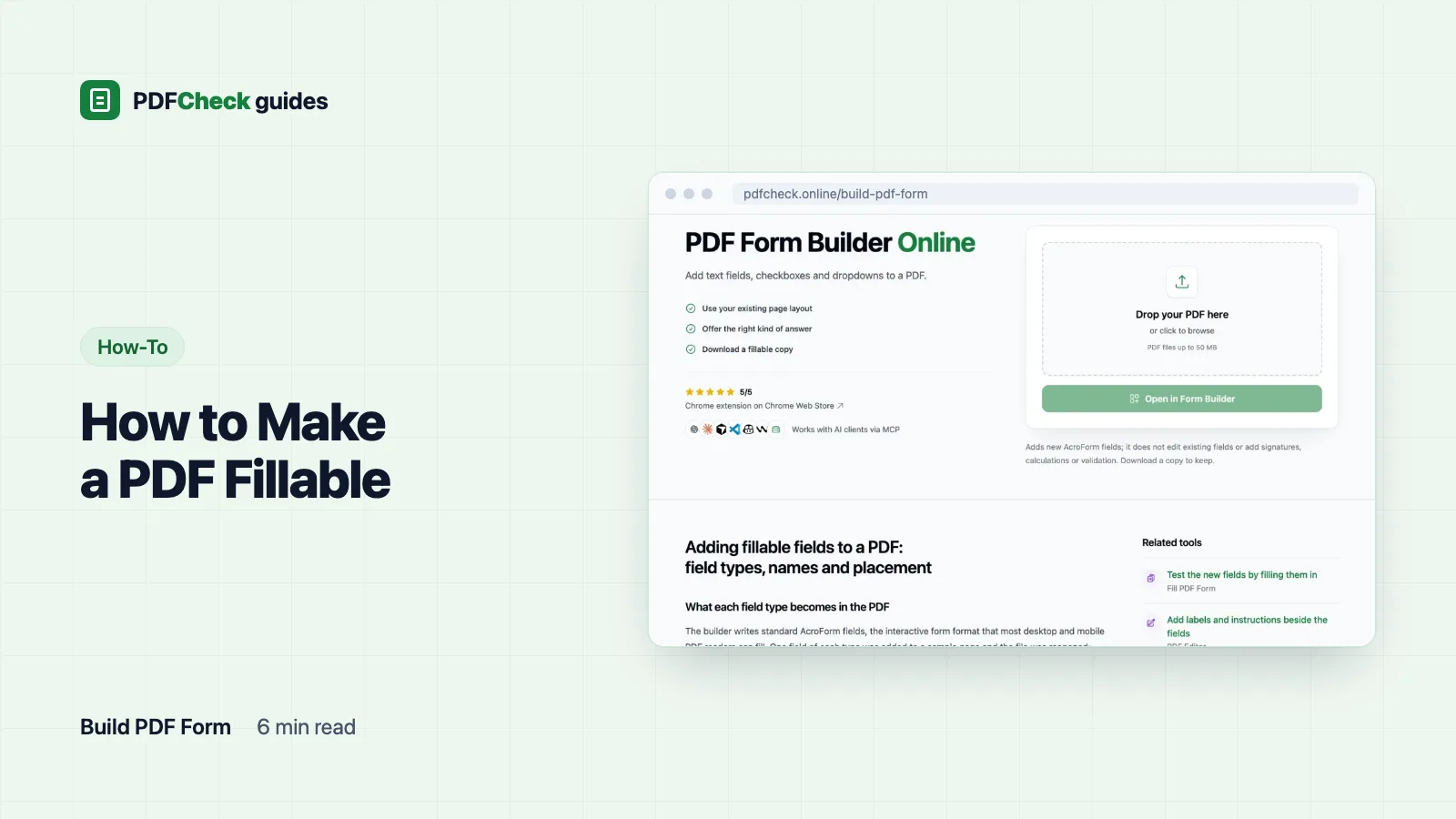
To make a PDF fillable, you add interactive form fields on top of the page, one wherever an answer goes. In the PDFCheck form builder that means upload the PDF, click to place each field, give it a sensible name, and download. The result is a standard AcroForm that Chrome, Edge, Preview and Acrobat Reader can all fill.
The two things that go wrong most often are names nobody can use later and radio groups that fall off the bottom of the page. Both are easy to avoid once you know how the builder places things.
What "fillable" means inside the file
A PDF can show lines and boxes that look like a form without being one; those are drawings. A fillable PDF also contains form fields, which a reader lets you type into or tick. The standard format is AcroForm, which the PDF Association's glossary defines, and it is what the builder writes using pdf-lib, an open-source library that runs in your browser. When I added one field of each type to a sample page and reopened the file, pdf-lib listed them as a text field, a checkbox, a dropdown and a radio group, next to the text field the sample already had.
Pick the field that fits the question
| Question on the form | Builder type | Written to the PDF as | Starting size |
|---|---|---|---|
| Name, email, reference number | Text | Single-line text field | 200 × 28 px |
| "Tick all that apply" | Checkbox, one per option | Checkbox, initially unticked | 20 × 20 px |
| Country or department from a long list | Dropdown | Combo box with no option preselected | 200 × 28 px |
| Yes or no, or one choice from a few | Radio | Radio group with one button per option | 20 × 20 px per button |
Use a radio group when people should see every choice at once. Use a dropdown when the list is long or the space is tight. Text fields take a default value and a font size from 6 to 72 pt, 12 by default.
Adding the fields
- Open the form builder and upload a copy of your PDF. The upload uses one daily check; saving and downloading do not.
- Pick a field type and click the page where the answer goes. Drag to move it and pull the corner to resize it.
- Select each field and rename it. New fields start as
Text_1,Checkbox_2,Dropdown_3and so on. For dropdowns and radio groups, type the options one per line. - Press Save to store the layout with your browser session, so you can reopen the project from the dashboard while the session lasts.
- Press Download. Your browser builds the form with pdf-lib and names it after your file with
_formadded. Its Producer property becomespdf-lib (https://github.com/Hopding/pdf-lib).
Finish within a day. The uploaded PDF is deleted by the hourly cleanup once it is more than 24 hours old, and after that the saved layout has nothing to reopen.
Name fields like database columns
Field names are what the answers are called when someone exports the data or feeds it to a script. Some screen readers also announce the name when a field has no tooltip. Three rules:
- Use short, meaningful names:
applicant_name,start_date,agree_terms. - Stick to letters, digits and underscores. Anything else becomes an underscore when the PDF is built, so "Full name" is saved as
Full_nameand "e-mail" ase_mail. - Make every name unique across the whole file, including fields that were already there. When a name is taken, pdf-lib refuses with "A field already exists with the specified name" and the builder skips that field. The download still succeeds, just without it, so count your fields if one seems to be missing.
Radio groups stack downwards, so place them high
A radio group is placed from its first button. Each further option goes directly below the previous one, at the same size, with a 4-point gap. Near the bottom of a page that is a trap. Take buttons 15 points high, three options, with the first button 20 points above the bottom edge:
- Option 1 sits 20 points above the edge.
- Option 2 sits at 20 − (15 + 4) = 1 point above the edge.
- Option 3 sits at 1 − 19 = −18 points: below the page, and invisible.
Place groups high enough for every option, or turn a long option list into a dropdown.
Screen pixels and PDF points
Sizes in the builder are measured on the page preview. At download, each value is divided by the preview's zoom factor to get PDF points, and the vertical position is flipped because PDF pages measure from the bottom edge. An A4 page is 595 points wide. Shown 800 pixels wide, its zoom factor is about 1.34, so the default 200 × 28 px text field becomes roughly 149 × 21 points in the file. Resize the preview and the numbers change, which is why you should judge field size against the printed labels, not against pixel counts.
What the builder will not do
- Signature, date, multi-line text and push-button fields.
- Required flags, input validation, number formats and calculations.
- Tooltip labels for screen readers or a custom tab order. Fields are added in the order you placed them.
- Changes to existing fields. Fields already in the PDF are not shown, moved or deleted, only kept.
- Fonts other than Helvetica. Default values are drawn in the Windows-1252 character set, so letters such as Lithuanian ė or Polish ł in a default value make the download fail. Leave those defaults empty and let the person filling the form type them.
- Encrypted files. A PDF with an open password or permission restrictions is refused at upload, because pdf-lib cannot save it in a readable form.
If you need any of those, finish the form in a desktop editor. Adobe Acrobat Pro's form tools add required flags, validation, tooltips and tab order to the same AcroForm fields, so you can start in the builder and refine there. LibreOffice Writer can also build a form from scratch with its form controls and export it as a PDF.
Test the form the way a recipient would
- Open the download in the PDF form filler and in at least one desktop reader your recipients use.
- Type a long answer into each text field and check it is not cut off.
- Tick and untick every checkbox. Confirm each radio group allows only one choice and that every option is visible.
- Save the filled copy, reopen it, and confirm the answers are still there.
Adding visible fields does not make a form accessible. Without tooltips and a sensible tab order, a screen reader user gets field names and placement order, nothing more. If accessibility is a requirement, finish in Acrobat Pro, test with assistive technology, and treat the PDF accessibility checker as a way to catch obvious gaps, not as proof of conformance.
One last habit: keep the original PDF without fields. When the wording changes, update that original and add the fields again rather than editing a filled copy.