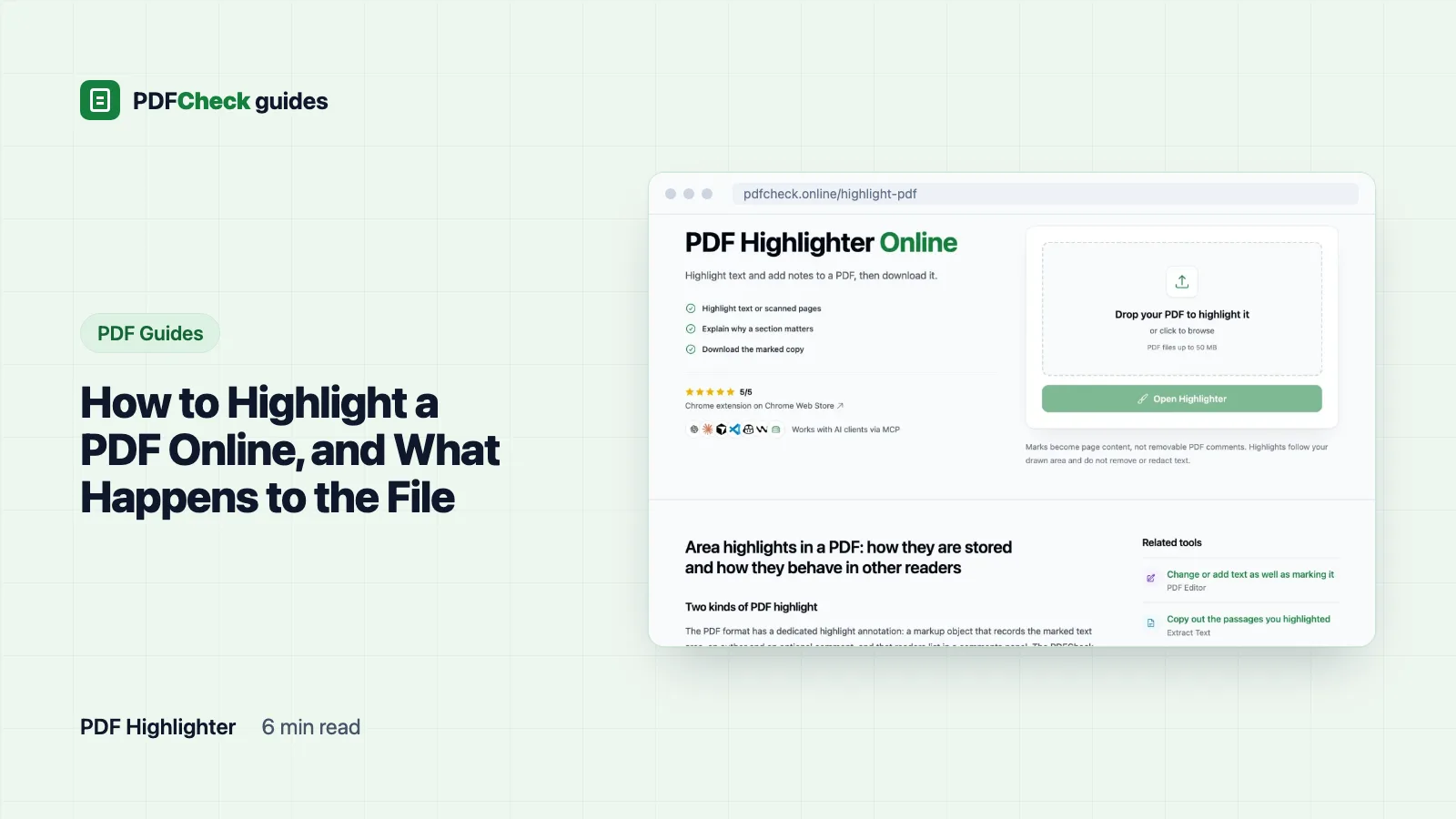
You can highlight a PDF in your browser in about a minute: open the PDF highlighter, upload a copy, drag a box over each passage, and download the marked file. Two things to know first. The highlighter uploads your file to PDFCheck, and the marks it makes are drawn into the page, so they show in every reader but nobody can later delete them as comments.
If either of those matters for your document, there are two other routes near the end of this guide: our PDF editor, which never uploads the file, and the highlight tools built into Preview and Acrobat.
Highlighting with the PDFCheck highlighter
- Open the highlighter and choose a copy of your PDF. The upload counts as one daily check. Saving and downloading afterwards do not.
- Press and drag across the passage. The mark covers exactly the rectangle you drag. By default it is yellow (
#ffef00) at 35% opacity, light enough that the words underneath stay readable on white paper. - Select a highlight to change its color or opacity. Dark colors and high opacity eat contrast fast, so go gentle on anything you plan to print.
- Use the Text tool to type a note on the page and the Rectangle tool to draw an unfilled outline around a table or figure.
- Press Save to keep a version on the server, or Download to get the file. It is named after your original with
_highlightedadded.
Two details help when you drag quickly. A drag narrower than 5 screen pixels is discarded, so a stray click leaves nothing behind. A drag that is wide but very thin is expanded to 12 pixels high, centered on your line, so a fast swipe still produces a usable mark. Highlights do not snap to text. For a sentence that wraps, drag one box per line or one box around the whole block.
Why these highlights are not comments
PDF has a dedicated highlight annotation: a markup object that records the marked text, an author and an optional note, and that readers list in a comments panel. That is what Acrobat's highlighter creates, and what Preview on a Mac creates when you select text and choose Highlight. The PDFCheck highlighter does not. It draws a semi-transparent filled rectangle into the page's own content, the same way a line or a colored box is drawn.
| Behavior | Highlight annotation | PDFCheck drawn highlight |
|---|---|---|
| Listed in a reader's comments panel | Yes | No |
| Can be deleted by a recipient as one item | Yes | No, it is part of the page |
| Shape | Follows the lines of selected text | The exact rectangle you drag |
| Works on scanned pages and pictures | Only where the reader finds text to select | Yes |
| Shown and printed identically in every reader | Depends on reader and print settings | Yes |
| Carries an author name and timestamp | Usually | No |
Pick drawn highlights when you want a fixed, marked copy: study notes, a printout, a file for someone whose viewer hides annotations. Pick annotation highlights when several people need to discuss, accept or remove marks. Adobe's commenting guide shows how Acrobat lists each highlight as a comment that others can reply to or delete, and Apple's Preview guide covers the Mac equivalent.
What one highlight did to a sample file
I added a single highlight across the first line of a two-page sample and saved. Before and after, the file held the same annotations: two links, one comment, one attachment and one form widget. No new object appeared, which is the proof that the highlight lives in the page content rather than on top of it. The words under the yellow area were still extractable as text, so the mark hides nothing.
The save changed other things, though. The Producer property became pdf-lib (https://github.com/Hopding/pdf-lib), the modification date moved to the time of the save, and the XMP metadata kept the old producer name, so two readers can now show two different answers. The file was rewritten with compressed object streams and went from 11,908 to 9,465 bytes. If a file's properties matter to you, note them before you start.
Removing a highlight depends on when you ask
- Before saving: select the highlight and delete it, or use Undo, which keeps the last 50 steps.
- After saving: restore an earlier version. Each Save keeps the previous copy, up to 20 versions, until the hourly cleanup removes files more than 24 hours old.
- After downloading: the highlight is part of the page. Covering it with a white box would hide the words underneath as well. Go back to an unhighlighted original.
The habit that follows from this: highlight a copy, keep the original somewhere safe, and download the version you want before the day is out.
Signed, restricted, scanned and archive files
Signed documents. Saving rewrites the whole file, and a digital signature covers an exact byte range of the original. On a signed test file whose signature Poppler's pdfsig reported as valid, one highlight and one save made pdfsig report "Illegal values in ByteRange array" and leave the signature unverified. Acrobat shows the same break in its own words when you validate the signature. Keep the signed original for the record and share a highlighted copy next to it.
Restricted files. A PDF with permission restrictions but no open password is refused at upload, because pdf-lib saves such files as a damaged copy. In a test with an AES-256 restricted file, Poppler could not open the result. Remove the restrictions with the owner password in the password tool first.
Scans. Scanned pages need no special handling, because the highlight is based on area rather than on recognized text. The scanned words still will not become searchable; the guide to searching a scanned PDF explains the OCR step.
PDF/A-1 archive copies. Transparency is not allowed in PDF/A-1, and a 35% highlight is transparency. Highlighting the archive copy breaks that conformance while the metadata still claims it. Mark a working copy instead.
If you would rather not upload the file
The PDF editor has the same Highlight tool, yellow at 35% opacity, and keeps the document in your browser. When you choose a file it is copied into the browser's own database and opened from there; it is not uploaded to PDFCheck, and no request carries its contents. Opening a file there does not use a daily check, the download is named with _edited, and the browser keeps your draft for 7 days without changes. The marks are drawn into the page in exactly the same way, so the signature and removal caveats above still apply. Your plan's size limit applies in both tools: 50 MB on Free, 100 MB on Pro and AI.
Outside PDFCheck, Preview on a Mac and Adobe Acrobat Reader both create annotation highlights that follow the selected text and appear in a comments or markup list. They need a text layer to select, so on a scan they only work after OCR.
Whichever tool you choose, highlights are see-through by design. To remove sensitive text from a PDF, use a redaction tool that deletes the content, not a colored box.