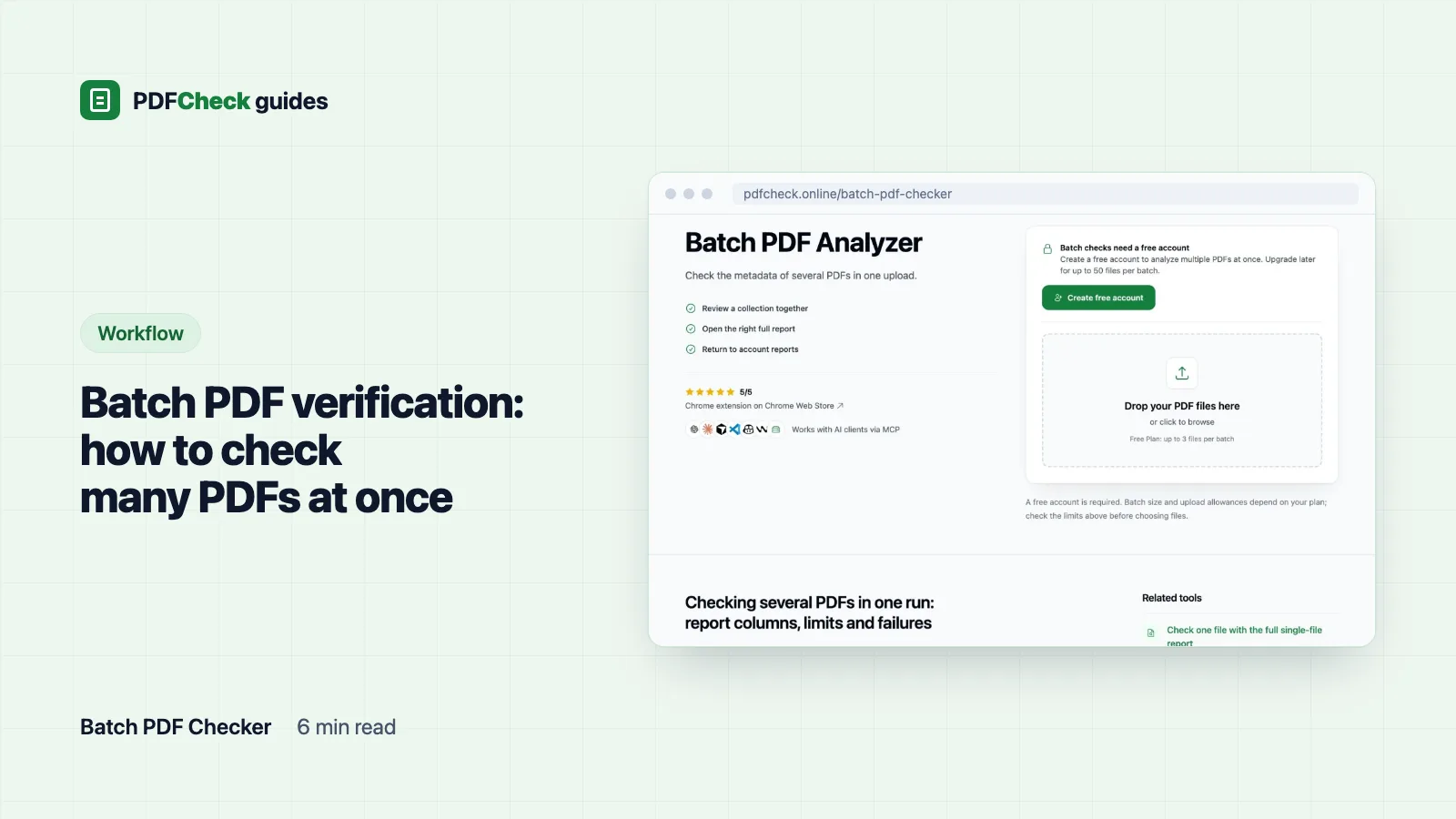
The quickest way to verify a stack of PDFs is to run them through one batch check and look for the row that does not match the others. A batch check reads metadata only. It tells you where to look, not whether a file is genuine.
I use the batch checker mostly to catch the one odd file in a set of similar ones: a scanned copy among generated invoices, or a pdf-lib file among Word exports. Here is what the table shows, what a real five-file run looked like, and the limits that decide how many files you can push through at once.
What the batch table shows
Above the table, the Batch PDF Checker gives you four totals: the number of files, how many show AI-generator indicators, how many do not, and the combined page count. Each row below shows the file name, page count, file size, detected software, a generator-indicator label and a link to that file's full report.
On a phone the Software column is hidden to keep the rows readable. The full report always has it, together with creation and modification dates and, where the file allows it, fonts, images and security details.
The indicator labels mean exactly this and nothing more:
| Label | Meaning |
|---|---|
| Strong indicators | The metadata matches a generator often used by AI assistants and the risk level is high |
| Some indicators | A match was found, but the risk level is below high |
| No indicators | The check ran and did not flag the file |
| Unknown | No risk level could be calculated |
A five-file run, measured
To see how the columns behave, five synthetic PDFs were passed through the same metadata service the batch checker calls. The files came from TCPDF, Ghostscript 10.08.0, pdf-lib 1.17.1 and Dompdf.
| File | Pages | Size | Software | Indicators |
|---|---|---|---|---|
| TCPDF file with Creator "ExampleWriter 4.2" | 2 | 11.63 KB | ExampleWriter | No indicators |
| Ghostscript output | 1 | 2.9 KB | Ghostscript | No indicators |
| Form filled in the PDFCheck form filler | 1 | 14.12 KB | pdf-lib | Strong indicators |
| Output of the PDFCheck metadata remover | 2 | 7.26 KB | Ghostscript | No indicators |
| Invoice rendered from HTML with Dompdf | 1 | 1.3 KB | DomPDF | No indicators |
Two rows are worth a pause. The first file names its creator "ExampleWriter 4.2", and the Software column repeats that name as written. Until 12 October 2026 the software catalogue matched name fragments, so this same file was reported as LibreOffice Writer. It now matches whole names only.
The third row is the more important one. That file is an ordinary form with a few values typed into it, and it got the strongest label in the batch. The reason is that pdf-lib wrote the file, and pdf-lib is common in AI-assisted workflows. The report itself says this is not proof the content was written by AI. If you remember one thing from this guide, make it that row: the Software and Indicators columns are leads to open in the full report, not findings.
How to run a batch
- Group files that should look alike. One supplier's invoices for a quarter, or every application for one role. An outlier only stands out against a matching set.
- Sign in. Batches need an account, even for two files. A free account is enough.
- Add the files. Up to 3 on Free, up to 50 on Pro and AI, and no more than 200 MB in total.
- Read the table row by row. Look for the software name, size or label that differs from the rest.
- Open the full report for any outlier. Check the dates there, then decide whether to run a focused check or ask the sender a question.
Without PDFCheck, you can do the same thing one file at a time. Acrobat shows the same fields under File > Properties, and Poppler's pdfinfo prints them in a terminal, which is handy in a shell loop if you are comfortable there. The batch table saves you the copy-and-paste into a spreadsheet.
Which differences are worth a second look
| What stands out | Common reasons | Next step |
|---|---|---|
| Different software from the rest | Re-saved, edited, scanned or produced by another system | Ask the sender how it was produced |
| Creation date far from the date printed on the page | Rebuilt, regenerated or re-exported | Read how to check whether a PDF was edited |
| Much larger than similar files | Scanned pages or embedded images | Check it has a text layer; shrink it with the PDF optimizer if size matters |
| Strong or Some indicators | Written by a library such as pdf-lib or ReportLab | Open the file in the AI detection report and compare with how it should have been made |
| The file should be signed | The batch check does not read signatures at all | Run it through the PDF signature checker |
Each row is a reason to ask, not a verdict. Software names and dates change for ordinary reasons, and Adobe's own metadata documentation makes clear these fields are written by whatever application saves the file, so any editor can change them.
Limits by plan
| Plan | Files per batch | Size per file | Checks |
|---|---|---|---|
| Not signed in | Batches not available | — | — |
| Free account | 3 | Up to 50 MB | 100 a day, one per file |
| Pro | 50 | Up to 100 MB | Unlimited |
| AI | 50 | Up to 100 MB | Unlimited |
Every plan shares the 200 MB cap per batch. Older subscriptions keep the batch size of the plan they were bought under. On Free, if you have fewer checks left today than files selected, only that many files are analyzed and the rest are listed as skipped, so twelve invoices on Free means four batches of three.
When the batch stops or comes back short
- "Create a free account to run batch PDF checks." You are not signed in.
- "You can upload a maximum of 3 files at once." The number is your plan's limit: 3 on Free, 50 on Pro and AI.
- "Total file size exceeds the 200 MB limit." Split the selection, or shrink the large files first.
- "This PDF appears to be corrupted or damaged." One file could not be parsed and the whole batch stops. In local tests a truncated PDF and a text file renamed to
.pdfboth triggered this. Remove that file and run again; a failed batch uses no checks. - Fewer rows than files. Your remaining checks ran out partway. The skipped file names are listed under the table.
- Unreadable characters in the Software column and no creation date. The file is encrypted. Both AES-256 test copies behaved this way. Unlock the file with its password first if you want a meaningful row.
What a batch cannot tell you
The batch checker does not verify digital signatures, certify PDF/A, test accessibility or scan for malware, and it cannot say who wrote the words on the page. For those questions, send the outlier to a focused tool: the signature checker for signatures, the PDF/A validator for archive files, and the accessibility checker, which also accepts several files at once, for screen-reader basics. Whether a signer is trustworthy still needs a validator with a trust store, such as Acrobat's signature validation.
Where the reports go
Each file gets its own saved report at a separate address, linked to your account. The PDFs themselves are not stored; only the extracted metadata is. Reports stay available until you delete them or close the account. If you only ever need one file at a time, the single-file check on the home page works without an account.