Before you compare two PDFs, decide what you actually want to know. "Which words changed?" needs a text comparison. "Is this the same export, or has someone re-saved it?" is a question about file properties. "Are these byte-for-byte identical?" is a question for a hash. Each method misses what the others catch, and for an important document you will usually want two of them.
Which comparison answers your question?
| Your question | Method | What it misses |
|---|---|---|
| Which words or numbers changed? | Text comparison (a diff) | Layout, images, anything in a scan |
| Did a picture, table or layout change? | Visual page-by-page review | Small wording edits |
| Are these two different exports or versions? | File property comparison | Content changes that leave properties alone |
| Are these exactly the same file? | Hash comparison | What the difference is |
Seeing which words changed
A text comparison lines up the words in both files and marks what was added, removed or changed. Three honest options:
- Compare the source documents. If both PDFs came from Word files you still have, open Word and choose Review, then Compare, then Compare two versions of a document (legal blackline). Word builds a new third document with the differences shown as tracked changes and leaves both originals alone. If either file already contains tracked changes, Word asks to accept them first. Microsoft's legal blackline page has the details.
- Use Acrobat's Compare Files tool. Adobe's feature page says it finds differences in text, images and graphics, with filters for headers and footers, formatting, annotations and backgrounds. It is listed under Acrobat Pro; the free Reader is listed for viewing, printing, sharing and commenting only.
- Extract the text and diff it yourself. Pull the text out of each file with the PDF text extractor, or with
pdftotextfrom the Poppler toolkit, then paste each result into its own Word document and run the compare above. Free, but the layout is gone.
One caveat with extracted text: it comes out in the order it is stored in the file, which in multi-column pages and tables is not always the order you read it. A paragraph that moved in storage can show up as a big change when nobody edited a word. And a scanned PDF has no text layer at all, so extraction returns nothing until you run OCR; the guide to searching a scanned PDF covers that, including the way OCR likes to turn an 8 into a B.
Comparing the file properties
Every PDF carries facts about itself: page count, PDF version, the software that wrote it, dates, whether it is encrypted or tagged, how many fonts and images it holds. Comparing those tells you whether two files are the same export even when the pages look alike.
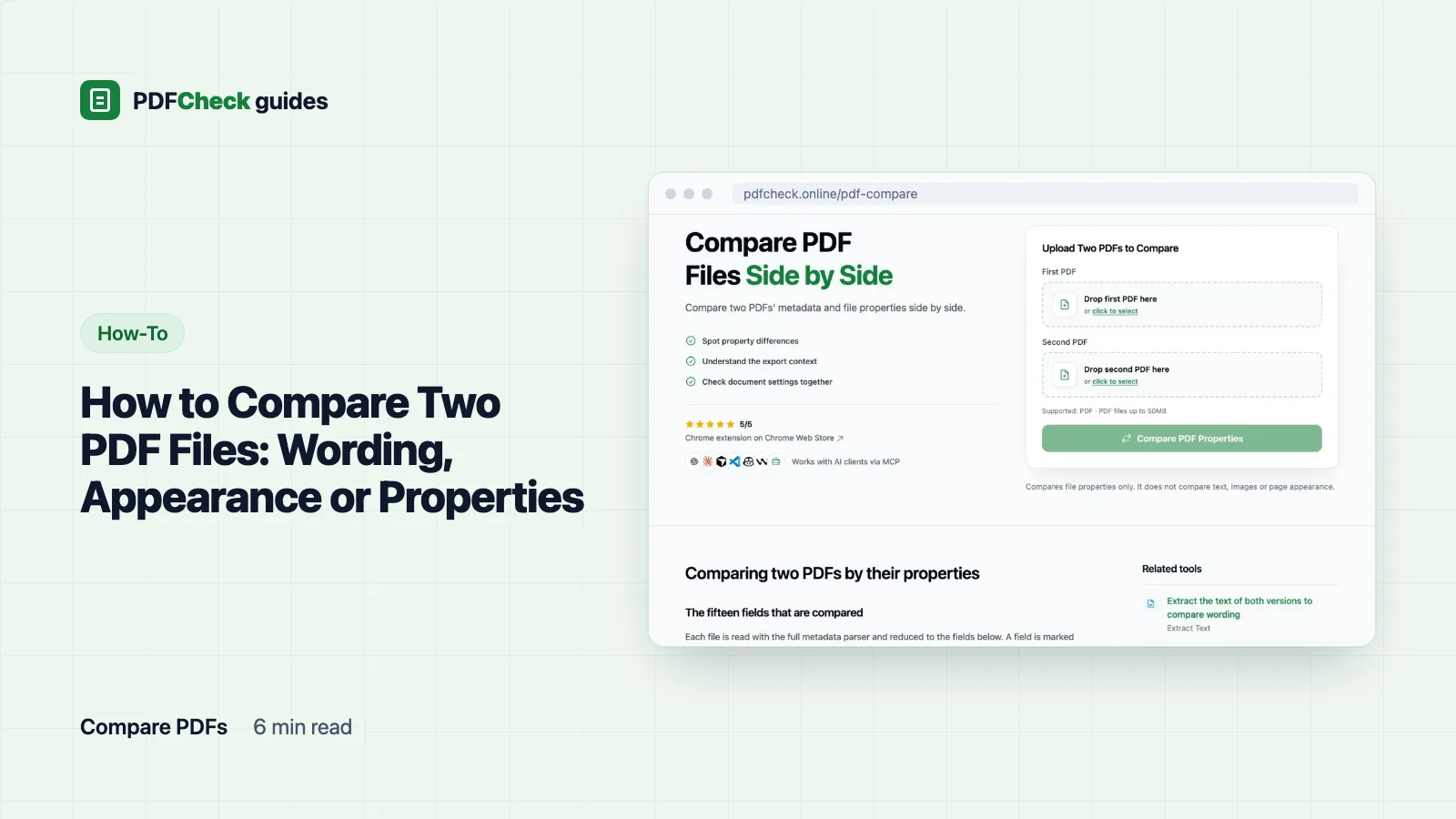
- Open the PDF comparer.
- Drop the older file into First PDF and the newer one into Second PDF. Each can be up to 50 MB on the Free plan, 100 MB on Pro and AI.
- Click Compare PDF Properties. The Comparison Results page lists fifteen fields and marks each one Different or not.
Matching is literal. A trailing space, a change of capital letters or a timestamp one second apart all count as Different. That is deliberate: the tool reports facts and leaves the judgement to you.
A worked example: an original and its converted copy
I took a one-page test file labelled as a Word export and made a copy by passing it through Ghostscript at the prepress setting. Nothing on the page was edited. The comparer reported four differences:
| Field | First PDF | Second PDF |
|---|---|---|
| File size | 922 bytes | 4,787 bytes |
| Producer | Microsoft® Word for Microsoft 365 | GPL Ghostscript 10.08.0 |
| Created | 2026-03-15 13:30:22 | 2026-10-12 18:43:57 |
| Modified | 2026-03-17 08:15:44 | 2026-10-12 18:43:57 |
Pages (1), PDF version (1.7), title, author, creator, encryption, tagging, font count (1), image count (0) and JavaScript were the same in both. That is the fingerprint of a conversion step: the Creator survived because Ghostscript copied it, the Producer names the new writer, and both dates were reset to the moment of conversion. The newer creation date belongs to the copy, not to the content.
Reading other differences
| Different field | Usual innocent cause | Worth a closer look when |
|---|---|---|
| File size only | Re-saving, compression or an appended update | The file was supposed to be the untouched original |
| Modified only | Opened and saved again, with or without edits | The sender says nobody touched it |
| Pages | Pages added, removed or split off | Always; open both files |
| Encrypted | A password or permissions added or removed | A signed or certified copy should not change at all |
| Fonts or images | Different export settings, or content changes | Counts change while the page count does not |
| JavaScript | Form features added by an editor | The file came from a source you do not trust |
A difference is a lead, not a verdict. Exporting the same document twice changes the dates and usually the size. Producer names and dates are plain text that any editor can rewrite, so they cannot tell you who made a change.
When "Compared Properties Match" still is not identical
Matching properties make it likely that two files are the same, not certain. The comparer does not read the wording on the pages, the pixels of images, form field values, comments or page order, so two contracts with different payment terms and identical properties come back as a match. A field that could not be read in either file is empty on both sides and counts as equal, which hides differences rather than revealing them.
For proof of identity, compare a hash. On macOS or Linux run shasum -a 256 report.pdf; on Windows run certutil -hashfile report.pdf SHA256. Do it for both files. If the two codes match, the files are byte-for-byte identical. If they differ, you only know that something differs, and you are back to the methods above to find out what.
What none of this can tell you
No comparison shows who changed a file, whether the change was allowed, or whether a document is genuine. For signed files, check the signature itself with the signature checker; the signature verification guide explains what a valid result does and does not mean. For a contract, run a text comparison first, then the property check, then the signature, in that order.
Is the comparison result shareable?
Not really. The result page keeps both file names and the extracted values, but not the PDFs, and it is private to the browser session that created it. Results made without an account are deleted after 90 days; results on an account stay until you delete them. You can return to it through its link in the same browser; sending the link to a colleague will not work.